> ## Documentation Index
> Fetch the complete documentation index at: https://docs.thinkrr.ai/llms.txt
> Use this file to discover all available pages before exploring further.
# Auto-Recharge & Auto Allocation
> The **Auto-Recharge & Threshold Settings** feature in thinkrr Voice AI ensures that your account remains fully functional without interruptions due to depleted credit.
## Overview
By setting up **Auto-Recharge**, users can automate credit top-ups when their account balance falls below a specified **Threshold**, preventing service disruptions and ensuring smooth call operations.
This guide walks you through how to configure **Auto-Recharge** and manage your **Threshold Settings** to optimize credit usage. It also highlights key considerations, especially under thinkrr’s **credit-based billing model**, where your **USD credit** converts into minutes dynamically based on your current pricing rate.
***
## What Is Auto-Recharge?
**Auto-Recharge** is a feature that allows users to **automatically purchase additional credit** when their wallet balance falls below a predefined **Threshold** amount. This ensures uninterrupted service without requiring manual top-ups each time your credit runs low.
For example:
* **Threshold Amount:** \$10
* **Auto-Recharge Amount:** \$50
If your wallet balance drops below **50** to your balance.
> 💡 Since thinkrr uses dynamic per-minute pricing, the number of minutes your \$50 will generate will depend on your selection: **\$0.16/min for Premium minutes or \$0.09/min for Basic minutes.**
***
## How to Set Up Auto-Recharge & Threshold Settings
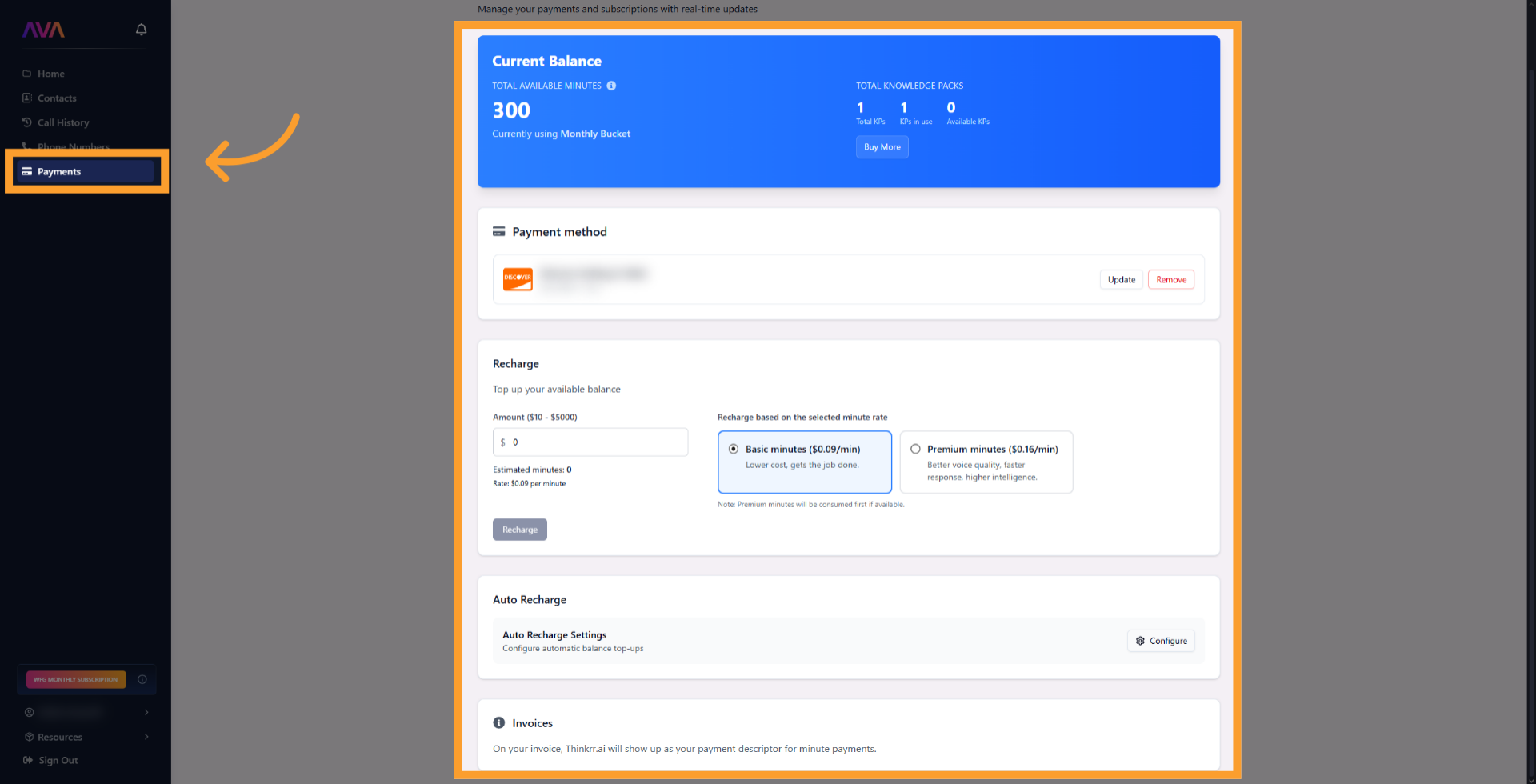
* In the thinkrr Voice AI platform, click on **Payments** from the main side panel to access your wallet.
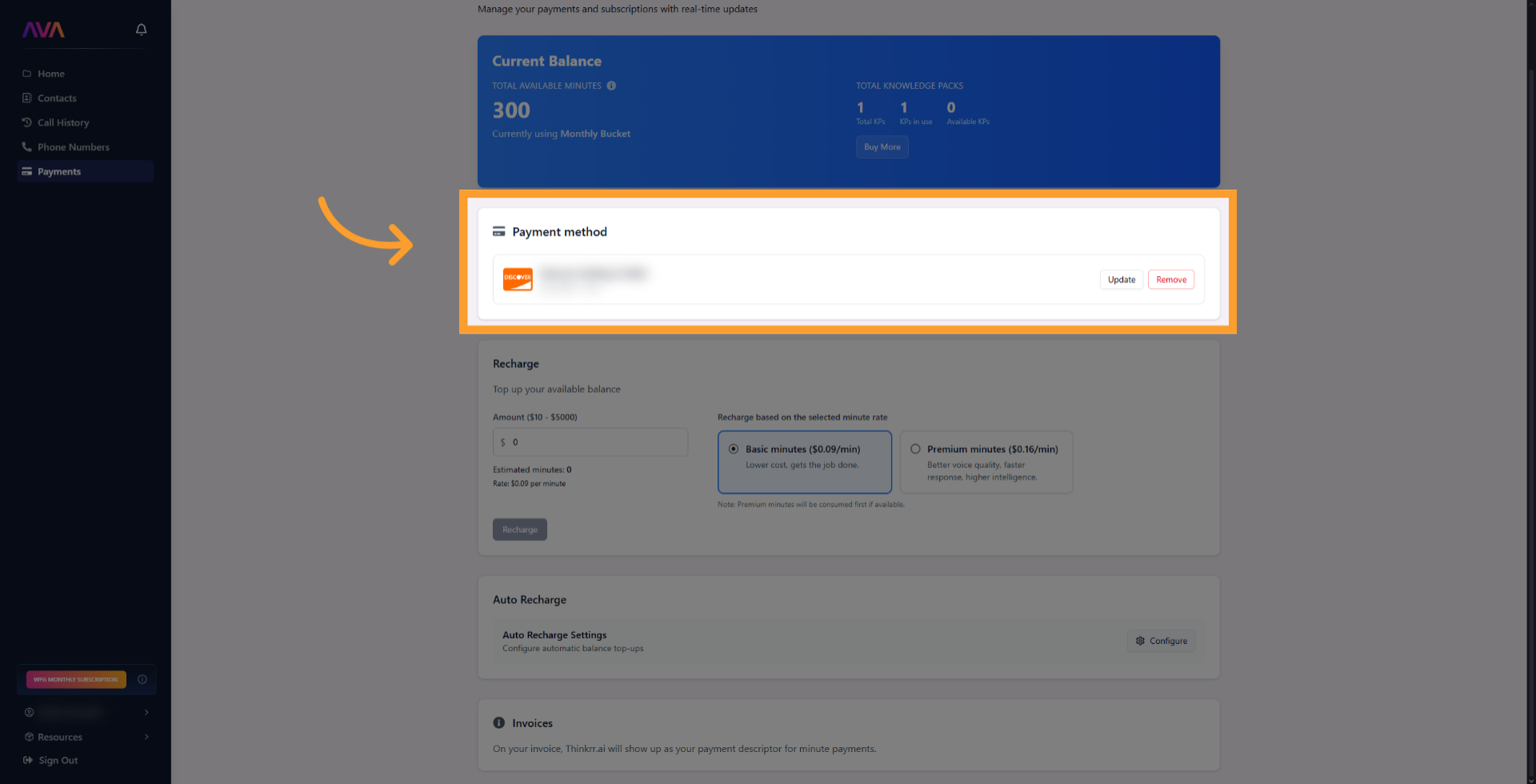
 * Ensure you have a valid credit or debit card added to your account.
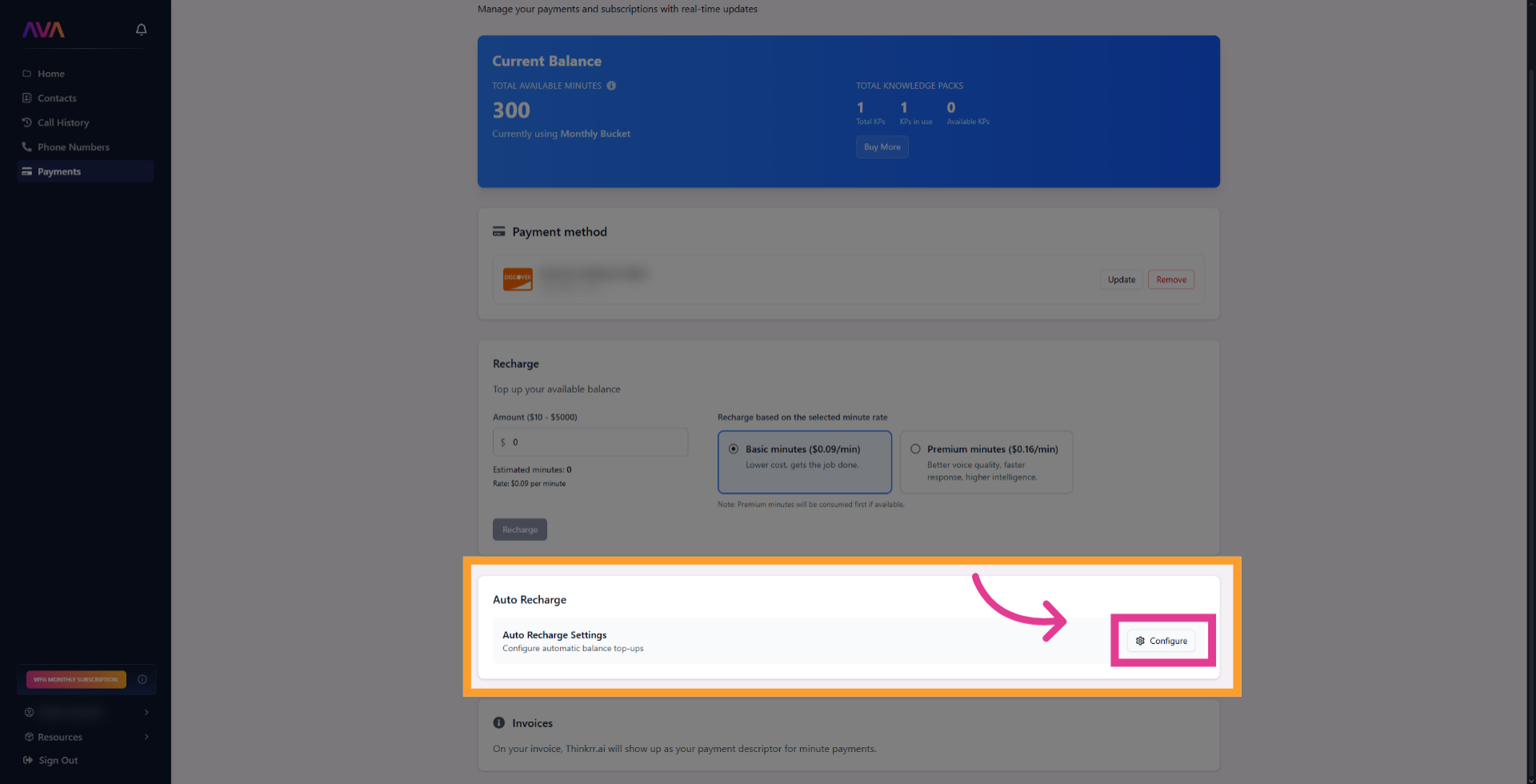
 * Click the '**Configure**' button to open the recharge conditions interface
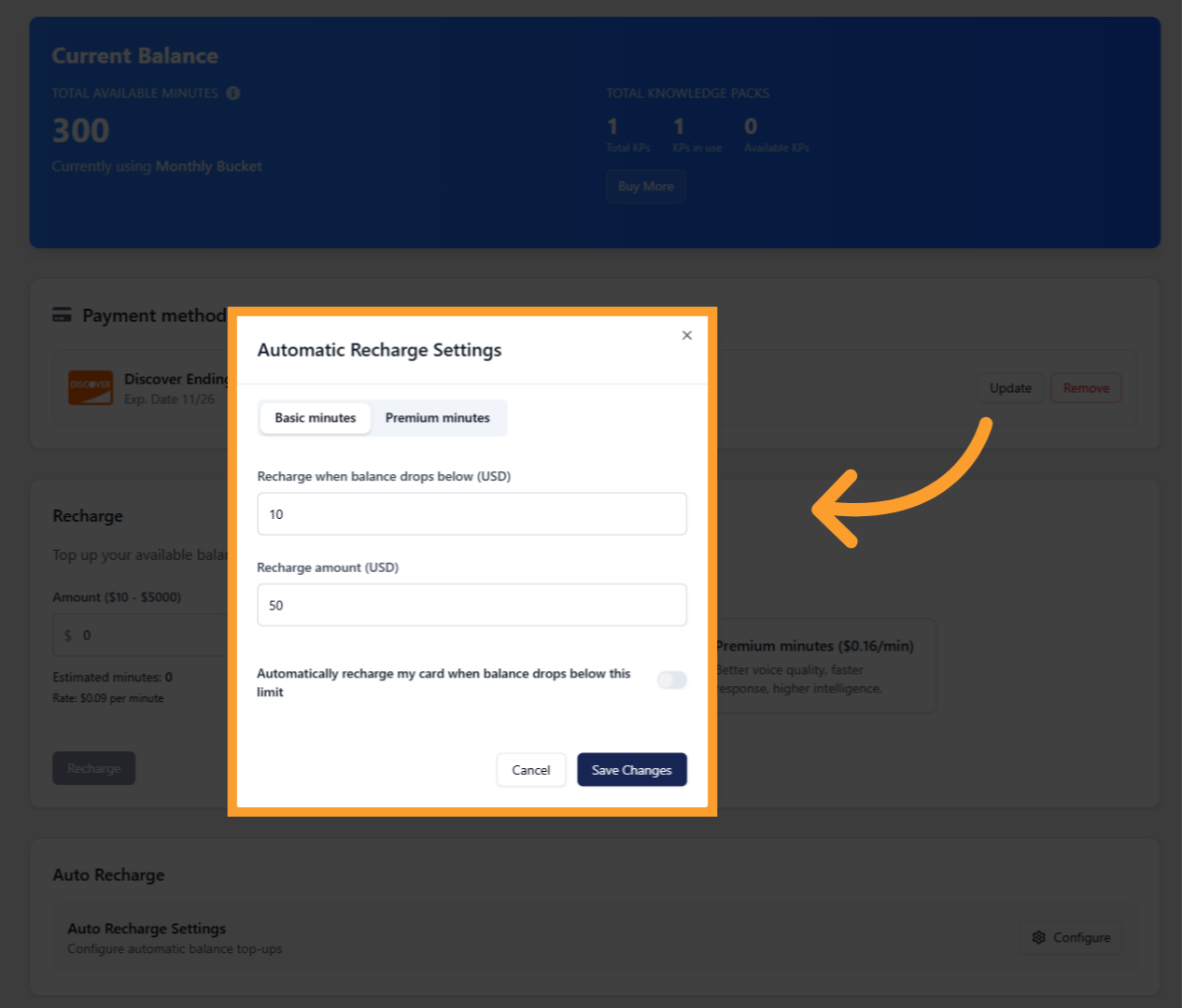
 * In the new interface, set the following values:
* **Minimum Threshold:** The wallet balance that triggers an Auto-Recharge.
* **Auto-Recharge Amount:** The amount of credit purchased when your balance drops below the threshold.
* Toggle the slide **on** for the recharge to be done automatically when you current balance drops below the set amount.
* In the new interface, set the following values:
* **Minimum Threshold:** The wallet balance that triggers an Auto-Recharge.
* **Auto-Recharge Amount:** The amount of credit purchased when your balance drops below the threshold.
* Toggle the slide **on** for the recharge to be done automatically when you current balance drops below the set amount.
 ***
## Sub-Account Minute Auto Allocation
Monthly Sub-Account Auto Allocation lets agencies purchase and assign **Basic** and **Premium** minutes to a specific sub-account on a recurring monthly basis. This is configured from **Account Manager**, not the Payments tab.
* In the left sidebar, click **Account Manager**.
***
## Sub-Account Minute Auto Allocation
Monthly Sub-Account Auto Allocation lets agencies purchase and assign **Basic** and **Premium** minutes to a specific sub-account on a recurring monthly basis. This is configured from **Account Manager**, not the Payments tab.
* In the left sidebar, click **Account Manager**.
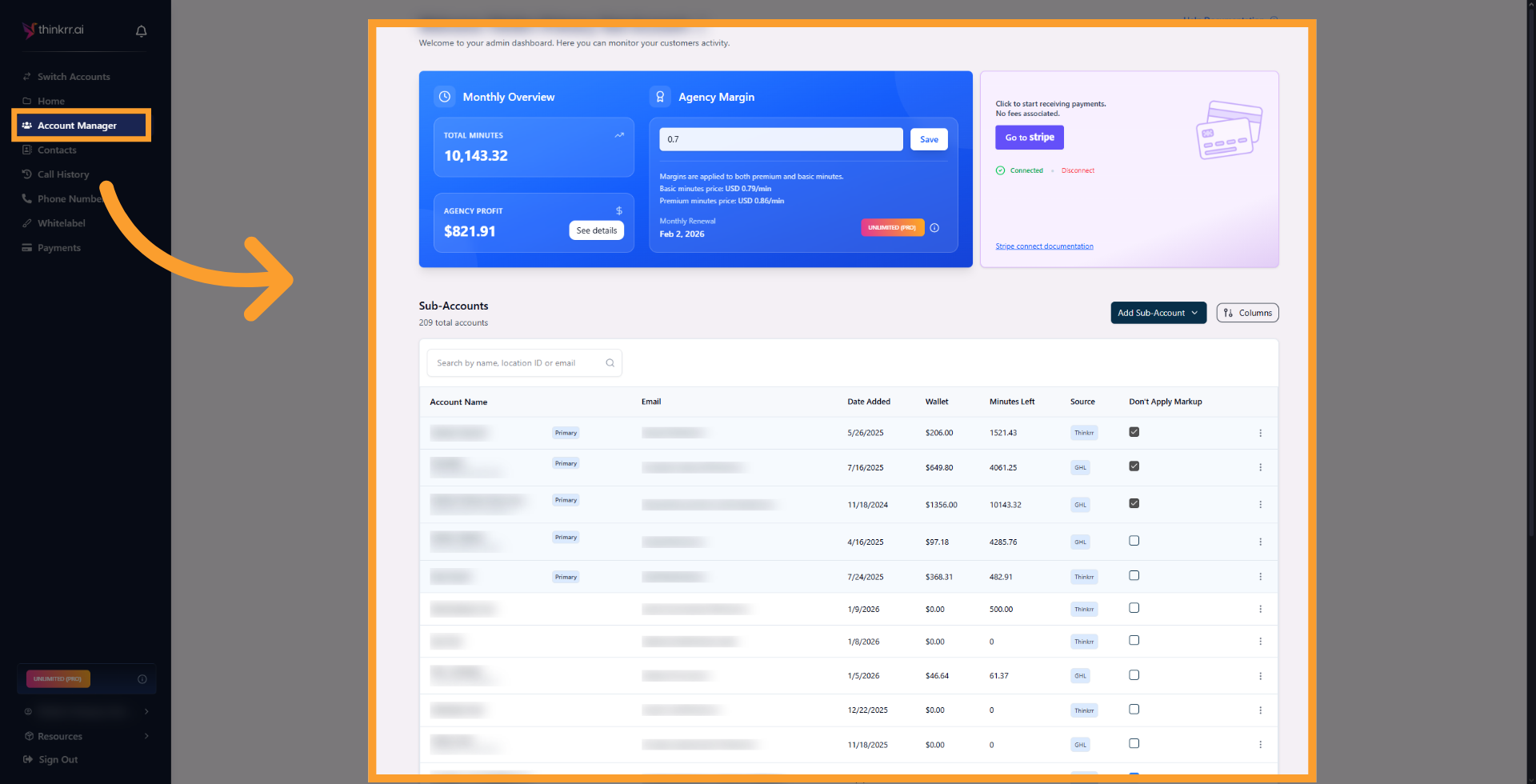 * Find the sub-account you want to manage in the list.
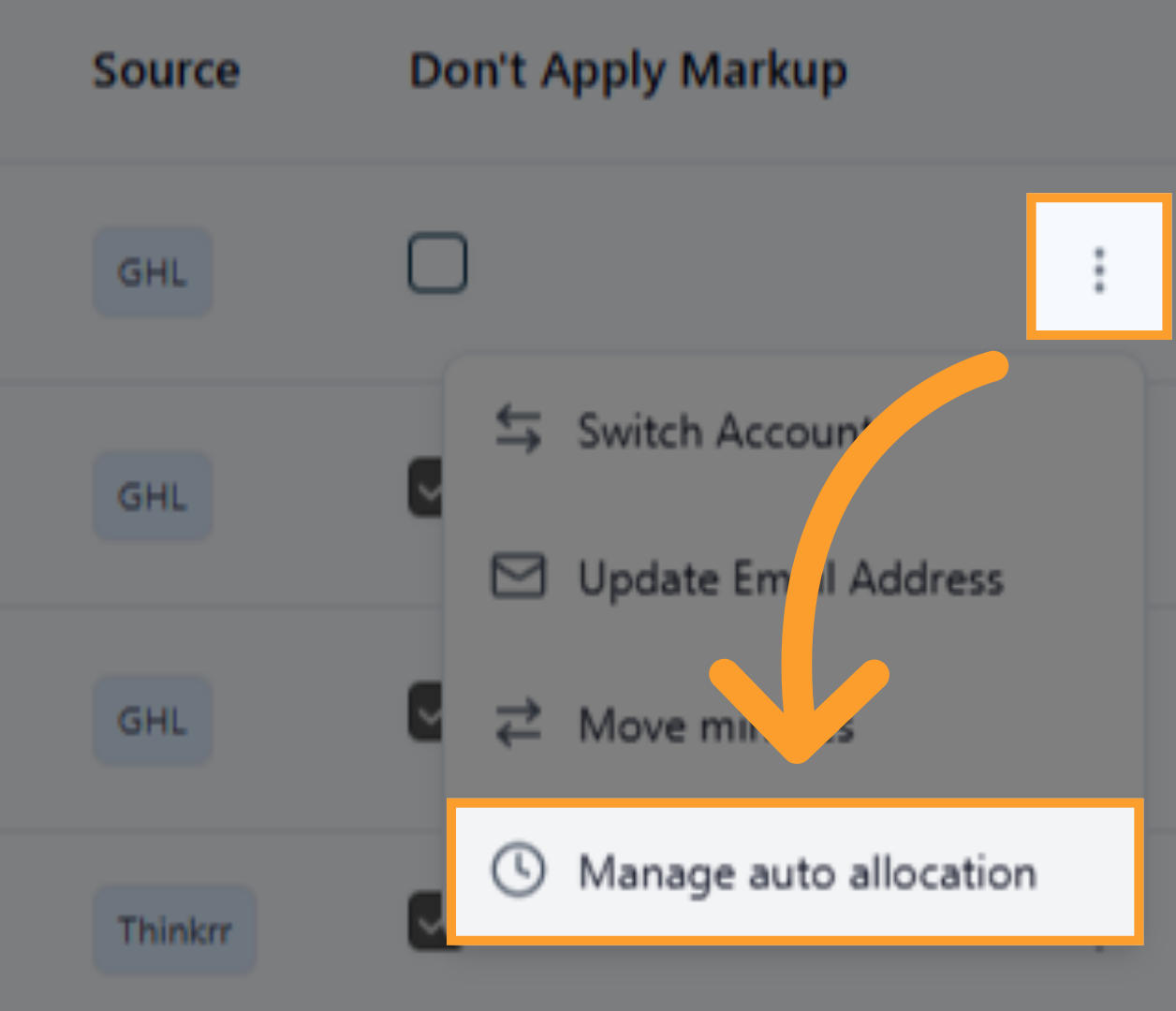
* Click the **three-dot menu** next to that sub-account.
* Select **Manage auto allocation**.
* Find the sub-account you want to manage in the list.
* Click the **three-dot menu** next to that sub-account.
* Select **Manage auto allocation**.
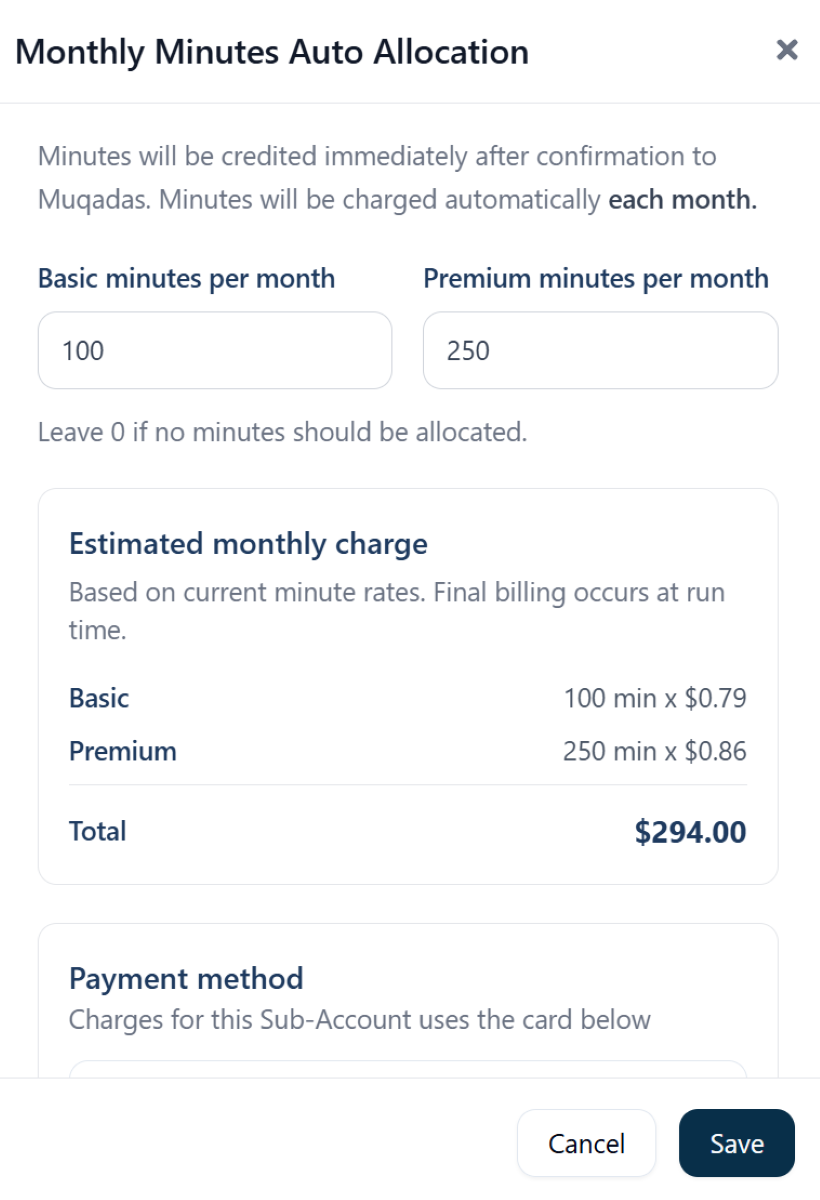
 * Enter how many **Basic minutes** should be allocated each month.
* Enter how many **Premium minutes** should be allocated each month.
* Leave a value as **0** if you do not want to allocate that minute type.
* Review the **Estimated monthly charge** shown in the panel.
* This estimate is based on current minute rates.
* Final billing occurs at runtime.
* Enter how many **Basic minutes** should be allocated each month.
* Enter how many **Premium minutes** should be allocated each month.
* Leave a value as **0** if you do not want to allocate that minute type.
* Review the **Estimated monthly charge** shown in the panel.
* This estimate is based on current minute rates.
* Final billing occurs at runtime.
 * Confirm which **payment method** will be used for the recurring monthly purchase.
* If no payment method is shown, add one before saving.
* Click **Save** to enable monthly allocation for that sub-account.
### Important Considerations
* **Dynamic Pricing Impact:** Credit does not equate to a fixed number of minutes. The amount of minutes your credit buys depends on your current per-minute rate.
* **Minute Type Affects Value:** Premium minutes are billed at \$0.16/min and Basic minutes at \$0.09/min. Your credit balance converts to minutes dynamically based on which rate applies to your current usage.
* **Threshold Sync:** If your balance is **below** the threshold when you set it, the system will **immediately** trigger a recharge.
Example:\
You set a threshold of **15** → the system recharges your wallet immediately to push your balance above the threshold.
## Campaign Autopause
If your balance drops below the minimum required to continue calling, affected campaigns are paused automatically.
* A warning banner appears across the app when one or more campaigns become inactive due to low balance.
* Click **Recharge** to add more minutes and continue calling.
* Confirm which **payment method** will be used for the recurring monthly purchase.
* If no payment method is shown, add one before saving.
* Click **Save** to enable monthly allocation for that sub-account.
### Important Considerations
* **Dynamic Pricing Impact:** Credit does not equate to a fixed number of minutes. The amount of minutes your credit buys depends on your current per-minute rate.
* **Minute Type Affects Value:** Premium minutes are billed at \$0.16/min and Basic minutes at \$0.09/min. Your credit balance converts to minutes dynamically based on which rate applies to your current usage.
* **Threshold Sync:** If your balance is **below** the threshold when you set it, the system will **immediately** trigger a recharge.
Example:\
You set a threshold of **15** → the system recharges your wallet immediately to push your balance above the threshold.
## Campaign Autopause
If your balance drops below the minimum required to continue calling, affected campaigns are paused automatically.
* A warning banner appears across the app when one or more campaigns become inactive due to low balance.
* Click **Recharge** to add more minutes and continue calling.
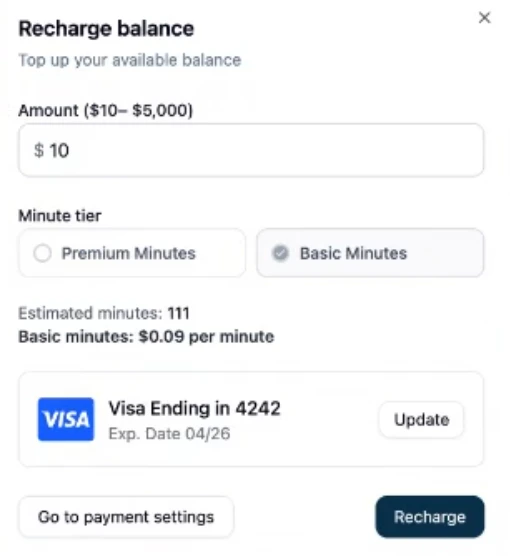
 * Enter the amount you want to add to your balance.
* Select whether you want to purchase:
* **Premium Minutes**
* **Basic Minutes**
* Enter the amount you want to add to your balance.
* Select whether you want to purchase:
* **Premium Minutes**
* **Basic Minutes**
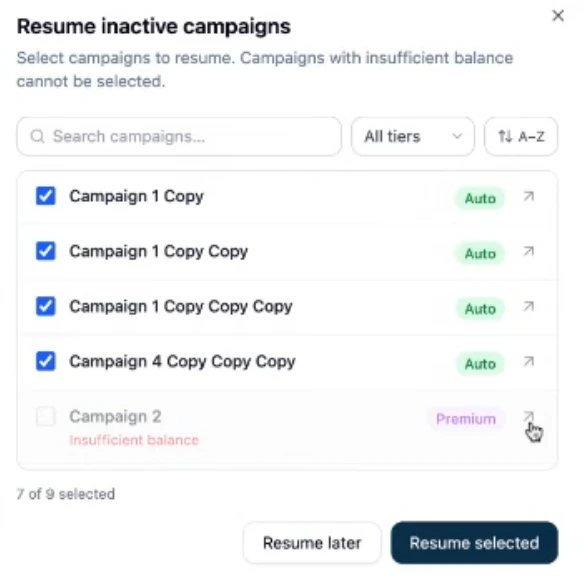
 * After recharging, choose which paused campaigns you want to resume.
* Campaigns follow their assigned minute type.
* If a campaign is set to **Premium** only and you recharge **Basic** minutes, that campaign stays unavailable in the resume list.
* After recharging, choose which paused campaigns you want to resume.
* Campaigns follow their assigned minute type.
* If a campaign is set to **Premium** only and you recharge **Basic** minutes, that campaign stays unavailable in the resume list.
 ***
## FAQs & Troubleshooting
### General Questions
Auto-Recharge automatically purchases more credit when your wallet balance falls below a set threshold, preventing interruptions in service.
It ensures you never run out of credit, avoiding disruptions to your AI Agent's call flow or campaign delivery.
Go to **Account Manager**, open the three-dot menu next to the sub-account, select **Manage**, then choose **Manage Auto Allocation**.
From there, set the number of Basic and/or Premium minutes you want to allocate each month and save your settings. The selected minutes will be purchased monthly and credited to that sub-account.
Monthly Sub-Account Auto Allocation allows you to purchase additional Basic or Premium minutes on a recurring monthly basis for a selected sub-account. It does not transfer or redistribute the Premium minutes included with your primary plan. Included monthly minutes remain reserved for the primary account and cannot be automatically allocated to sub-accounts.
### Configuration
Go to the **Payments** section, add a payment method, then define your **Threshold** and **Auto-Recharge Amount**. Click **Save** to activate.
The system will immediately trigger a recharge to bring your balance above the threshold using your saved payment method.
Yes, you can adjust or disable Auto-Recharge at any time from the **Payments** tab.
### Usage and Results
Auto-Recharge purchases USD credit, not minutes. The number of minutes that credit translates to depends on your current pricing rate, which is $0.16 for Premium minutes or $0.09 for Basic minutes.
You’ll receive an error notification and your account may be paused until the issue is resolved. Make sure your payment details are always up to date.
Yes. Agencies, subaccounts, and regular users can all use Auto-Recharge to automate credit purchases.
No. Subaccounts must configure Auto-Recharge themselves. Agencies can monitor usage but cannot enforce recharge settings directly.
***
For additional questions or guidance, try using our [Virtual Support Agent](/Thinkrr-Support-Agent)! Available 24/7 to help resolve most issues quickly at [thinkrr.ai/support](https://thinkrr.ai/support).
If you still need assistance, visit our support site at help.thinkrr.ai and submit a Ticket or contact our team directly at [hello@thinkrr.ai](mailto:hello@thinkrr.ai).
***
## FAQs & Troubleshooting
### General Questions
Auto-Recharge automatically purchases more credit when your wallet balance falls below a set threshold, preventing interruptions in service.
It ensures you never run out of credit, avoiding disruptions to your AI Agent's call flow or campaign delivery.
Go to **Account Manager**, open the three-dot menu next to the sub-account, select **Manage**, then choose **Manage Auto Allocation**.
From there, set the number of Basic and/or Premium minutes you want to allocate each month and save your settings. The selected minutes will be purchased monthly and credited to that sub-account.
Monthly Sub-Account Auto Allocation allows you to purchase additional Basic or Premium minutes on a recurring monthly basis for a selected sub-account. It does not transfer or redistribute the Premium minutes included with your primary plan. Included monthly minutes remain reserved for the primary account and cannot be automatically allocated to sub-accounts.
### Configuration
Go to the **Payments** section, add a payment method, then define your **Threshold** and **Auto-Recharge Amount**. Click **Save** to activate.
The system will immediately trigger a recharge to bring your balance above the threshold using your saved payment method.
Yes, you can adjust or disable Auto-Recharge at any time from the **Payments** tab.
### Usage and Results
Auto-Recharge purchases USD credit, not minutes. The number of minutes that credit translates to depends on your current pricing rate, which is $0.16 for Premium minutes or $0.09 for Basic minutes.
You’ll receive an error notification and your account may be paused until the issue is resolved. Make sure your payment details are always up to date.
Yes. Agencies, subaccounts, and regular users can all use Auto-Recharge to automate credit purchases.
No. Subaccounts must configure Auto-Recharge themselves. Agencies can monitor usage but cannot enforce recharge settings directly.
***
For additional questions or guidance, try using our [Virtual Support Agent](/Thinkrr-Support-Agent)! Available 24/7 to help resolve most issues quickly at [thinkrr.ai/support](https://thinkrr.ai/support).
If you still need assistance, visit our support site at help.thinkrr.ai and submit a Ticket or contact our team directly at [hello@thinkrr.ai](mailto:hello@thinkrr.ai).