> ## Documentation Index
> Fetch the complete documentation index at: https://docs.thinkrr.ai/llms.txt
> Use this file to discover all available pages before exploring further.
# Profits & Payouts
> With the **Agency Profits & Payouts** feature, Agencies using the thinkrr Voice AI platform can unlock a new revenue stream by earning profits on minutes purchased by their Sub-accounts.
## Overview
By applying a custom markup to minutes, Agencies can earn the difference between the thinkrr.ai base cost and the sale price. Payouts are securely processed through Stripe, making it easy for Agencies to withdraw their earnings once they reach the payout threshold. Let’s explore how this works and how you can get started.
## Details
**How Agency Profits Work**
Agencies have the ability to set a custom **per-minute markup** on minutes purchased by their Sub-accounts. When a Sub-account buys minutes through thinkrr, the agency earns the difference between the **thinkrr.ai base cost** and the **agency-defined price**. These earnings are accumulated as **agency profits** and are paid out once they reach a minimum threshold of **USD\$100.**
Example:
* thinkrr.ai Base Cost: \$0.16 per minute
* Agency Price: \$0.20 per minute
* Profit per minute: $0.04. If a Sub-account buys **2,000 minutes**, the agency earns **$80 in profit.\*\*
> Bulk minutes are always Premium minutes and are billed at the Premium rate.
Payouts are processed through **Stripe Connect**, ensuring fast and secure transactions directly to the agency’s bank account.
## Setting Up Stripe for Payouts
To start receiving your agency profits, you’ll need to connect your **Stripe account** to thinkrr. Here’s how:
## Steps to Connect Stripe
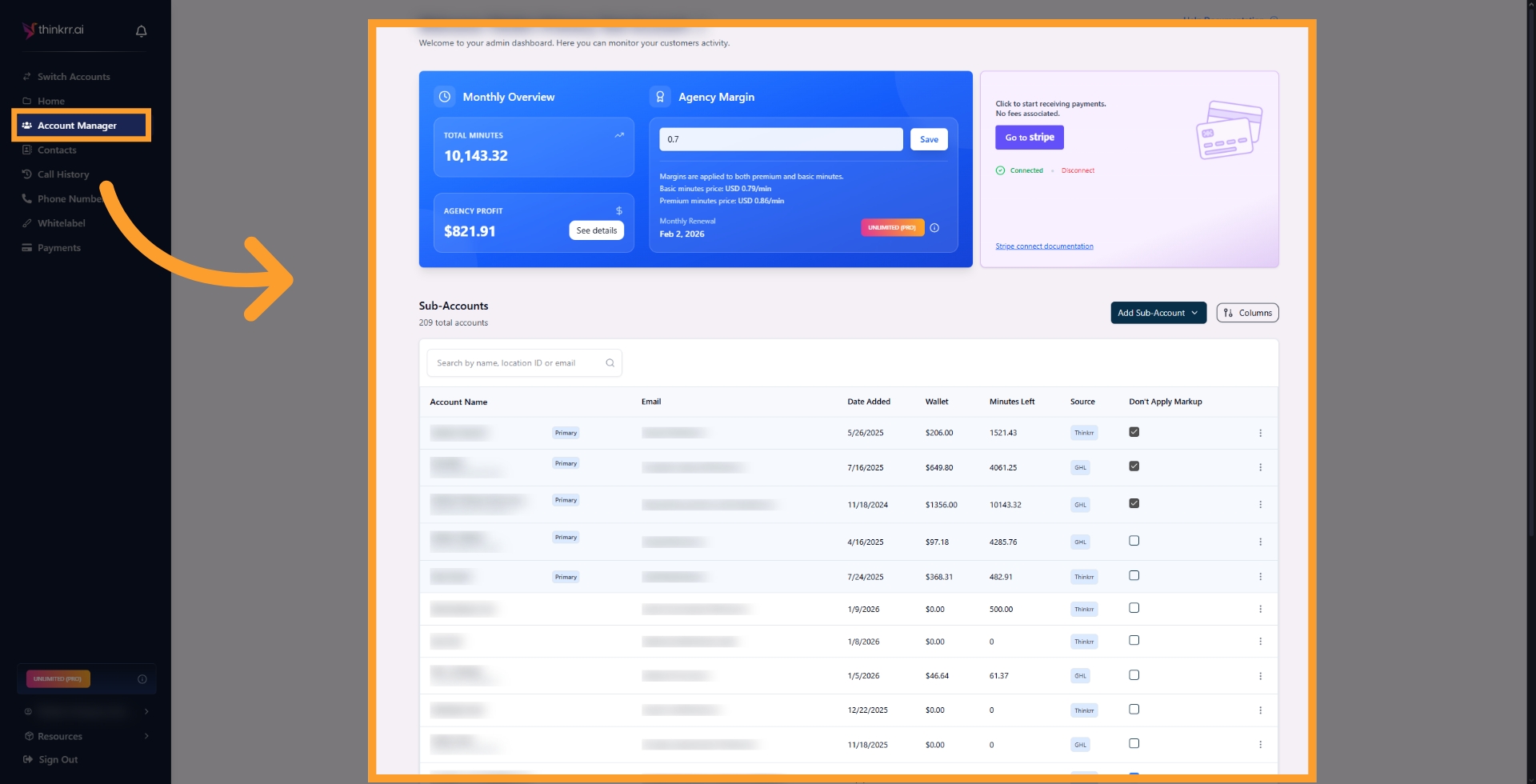
* Navigate to your account and open the **Account Manager** page.
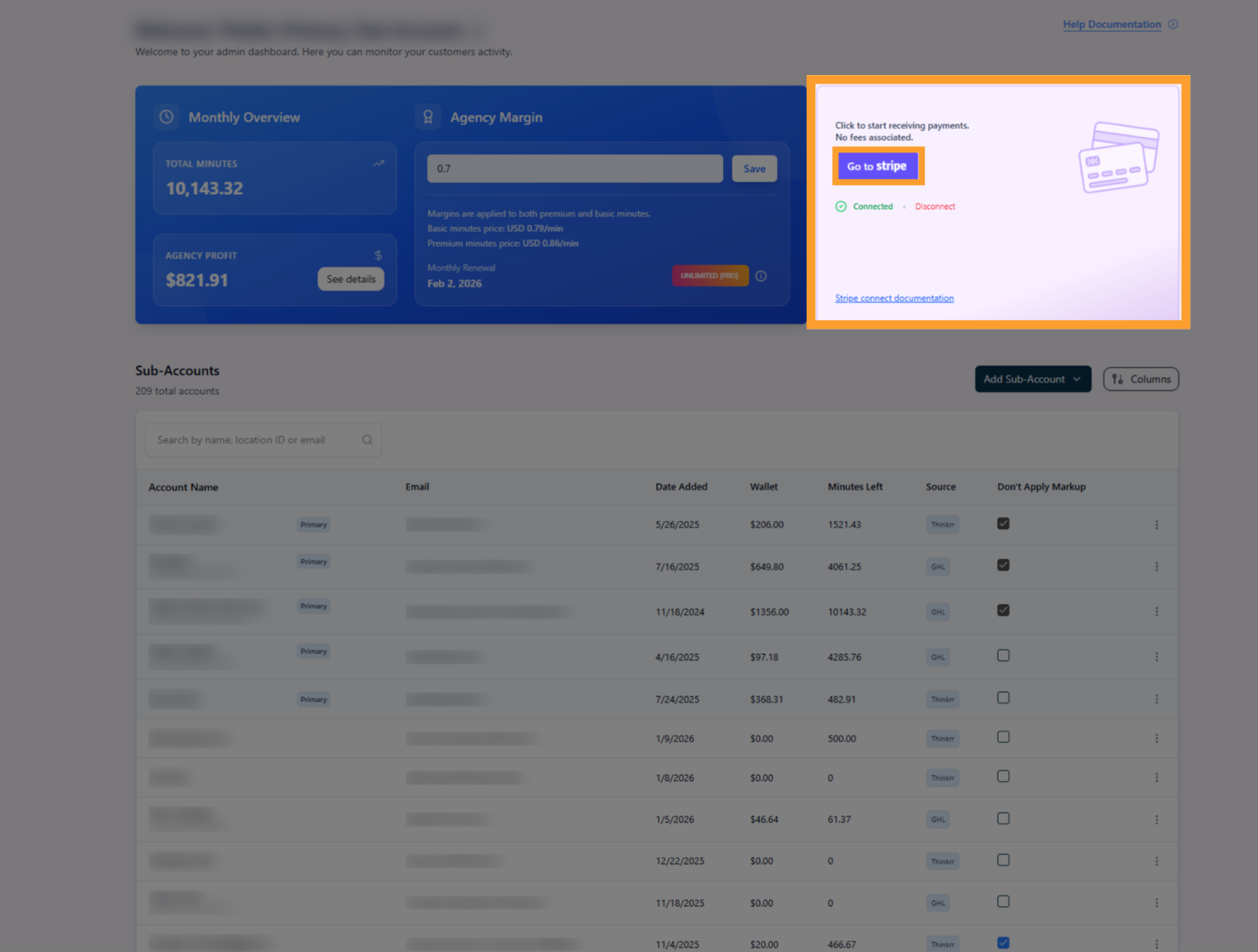
 * You’ll see a button prompting you to connect your Stripe account.
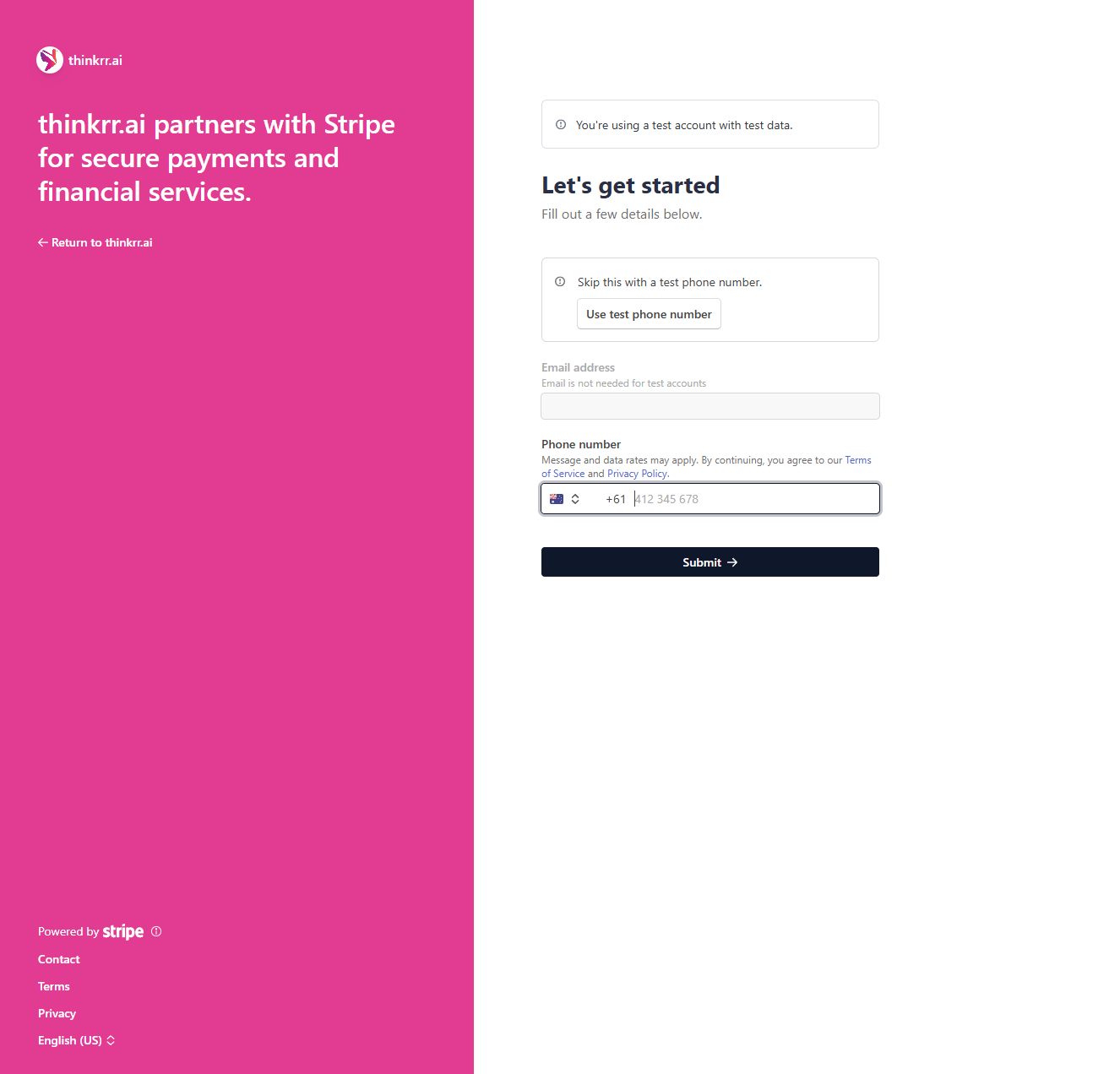
 * Stripe will guide you through the secure onboarding process, where you’ll need to provide your business and banking details.
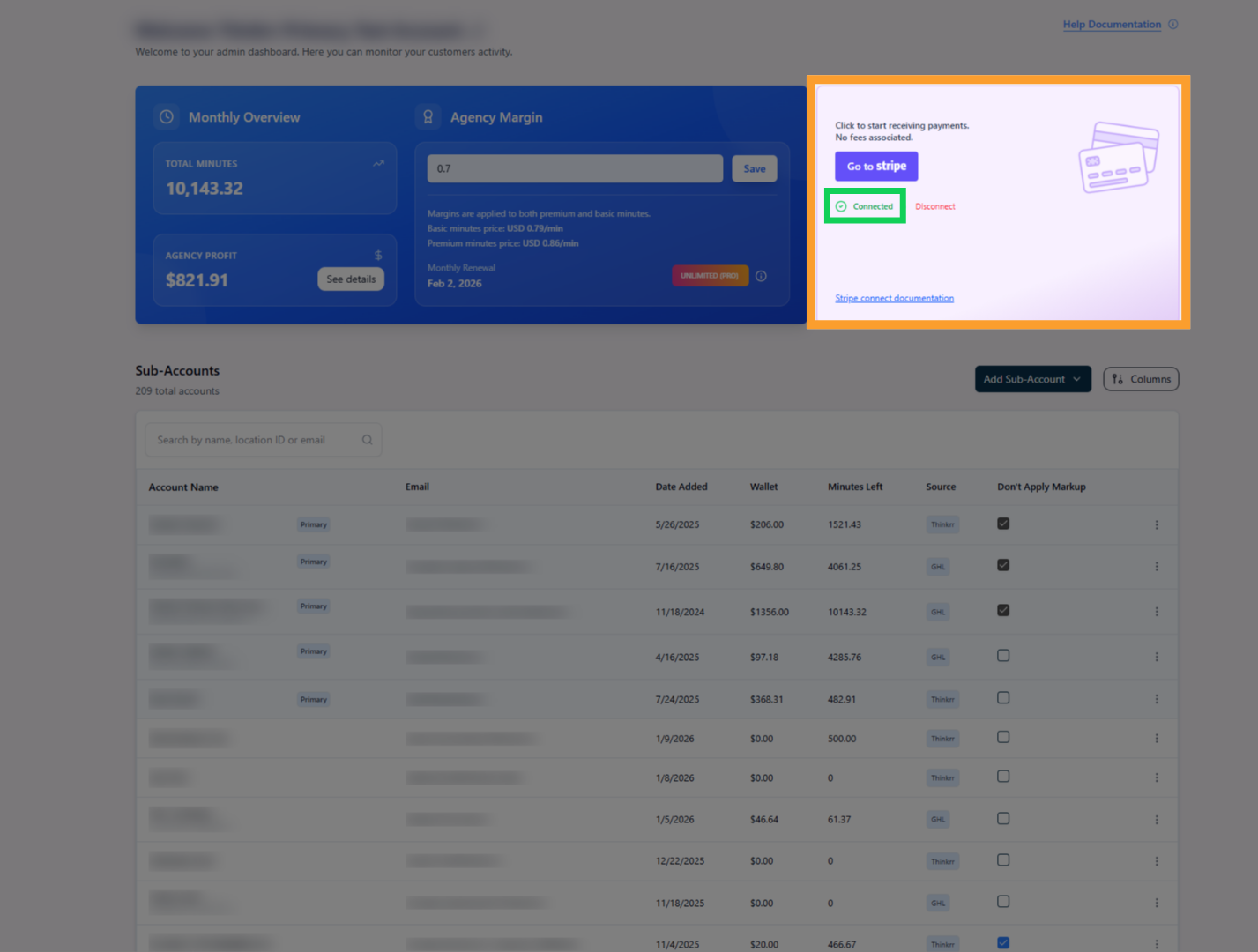
 * Once the connection is complete, your Stripe status will show as **Connected** in your thinkrr Account Management dashboard.
 * After confirming your Stripe connection, locate the **Monthly Overview** card in your dashboard.
* In the **Agency Profit** section, you’ll see a summary of your accumulated profits for the current billing period.
* After confirming your Stripe connection, locate the **Monthly Overview** card in your dashboard.
* In the **Agency Profit** section, you’ll see a summary of your accumulated profits for the current billing period.
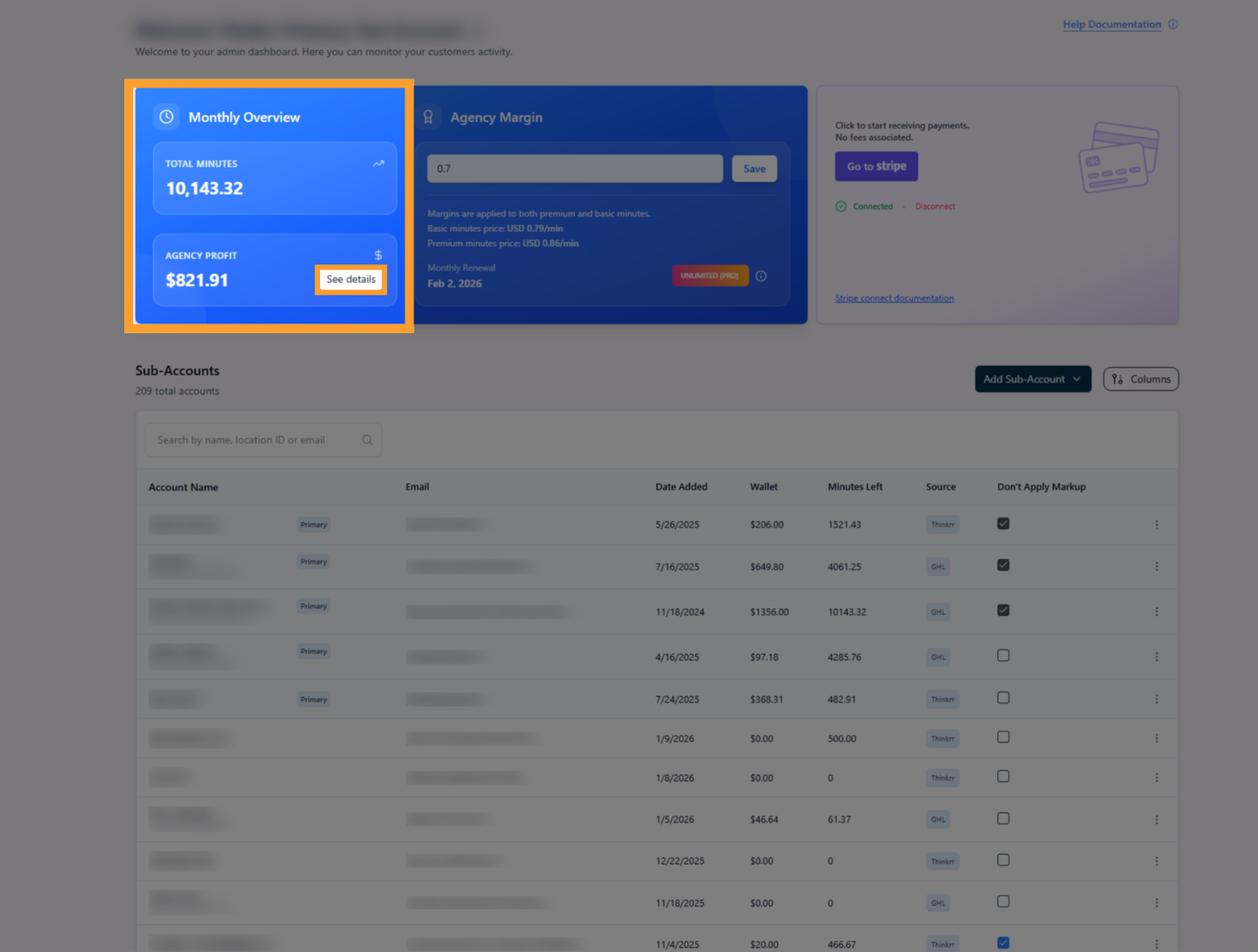 * Click **See Details** within the Agency Profit section.
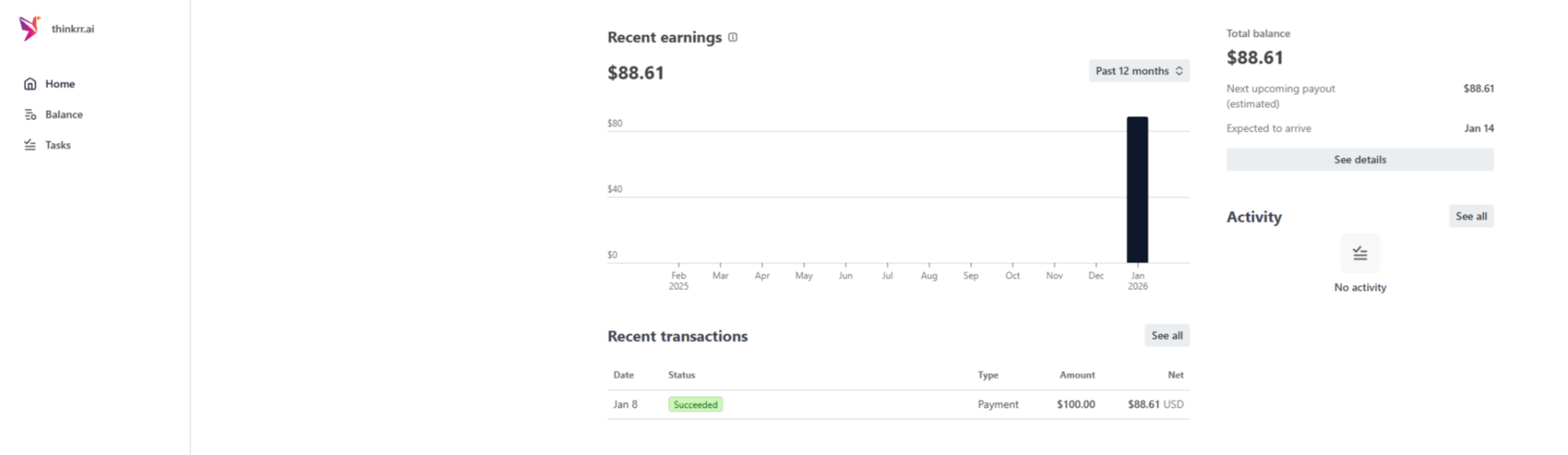
* You’ll be redirected to your **Stripe Connect dashboard**, where you can review:
* Individual transactions
* Profit breakdowns
* Payout-related details
* Click **See Details** within the Agency Profit section.
* You’ll be redirected to your **Stripe Connect dashboard**, where you can review:
* Individual transactions
* Profit breakdowns
* Payout-related details
 ## What You’ll Need to Connect Stripe
Depending on whether you’re an individual or a business, you’ll need the following information:
**For Individuals or Sole Proprietors:**
* Full Name
* Date of Birth
* Home Address
* Phone Number
* Social Security Number (if applicable)
**For Businesses:**
* Business Name
* Business Address
* Business Website
* Employer Identification Number (EIN)
* Industry Type
**Bank Account Information (for Payouts):**
* Bank Account Number
* Routing Number (for U.S. accounts)
* Account Type (Checking or Savings)
* IBAN (for international accounts, if applicable)
*For more detailed information, please refer to Stripe Documentation or contact Stripe support.*
## **Receiving Payouts**
Once your agency profits reach a certain **threshold**, a payout will be scheduled for the next billing cycle.
* **Payout Timing:** Payouts are typically processed for the upcoming billing cycle once the threshold is met.
* **Dashboard Notifications:** Your Admin Dashboard will display upcoming payout details. (Feature coming soon.)
## **Benefits of the Agency Profit Model**
* **New Revenue Stream:** Earn profits on every minute purchased by your Sub-accounts.
* **Custom Pricing Control:** Set your own markup to maximize your earnings.
* **Automated Payouts:** Once connected to Stripe, payouts are automated when the threshold is met.
* **Scalable Incentive:** The more minutes your Sub-accounts purchase, the more you earn.
## **FAQs & Troubleshooting**
### **General Questions**
Stripe Connect is a secure payment platform that allows thinkrr.ai to pay agency owners their profits seamlessly.
Go to your **Account Manager** page, click **“Connect Stripe”**, and follow Stripe’s onboarding process to set up your account.
You’ll need personal details (e.g., full name, date of birth, phone number), business information (if applicable), bank account details, and a government-issued ID for verification (if required).
Your connection status will show as **“Initiating”** in your Admin Dashboard. You’ll need to complete the setup in Stripe to start receiving payouts. If you do not complete the setup, you can always return later and continue where you left off.
### **Payout Questions**
Payouts are processed once your agency profits reach **USD\$100** and will be scheduled for the upcoming billing cycle.
Failed payouts due to incorrect bank details will be flagged in your dashboard. You’ll be notified, and our team will assist you in resolving the issue.
There are no fees for connecting your Stripe account to thinkrr.ai. However, Stripe may charge standard transaction fees.
### **Security Questions**
Yes, all financial details are securely managed through Stripe. thinkrr.ai does not store sensitive banking information.
Stripe requires this information to comply with financial regulations and verify identity. For some businesses, you may need to provide additional documentation, such as business registration documents or proof of ownership.
***
For additional questions or guidance, try using our [Virtual Support Agent](/Thinkrr-Support-Agent)! Available 24/7 to help resolve most issues quickly at [thinkrr.ai/support](https://thinkrr.ai/support).
If you still need assistance, visit our support site at help.thinkrr.ai and submit a Ticket or contact our team directly at [hello@thinkrr.ai](mailto:hello@thinkrr.ai).
## What You’ll Need to Connect Stripe
Depending on whether you’re an individual or a business, you’ll need the following information:
**For Individuals or Sole Proprietors:**
* Full Name
* Date of Birth
* Home Address
* Phone Number
* Social Security Number (if applicable)
**For Businesses:**
* Business Name
* Business Address
* Business Website
* Employer Identification Number (EIN)
* Industry Type
**Bank Account Information (for Payouts):**
* Bank Account Number
* Routing Number (for U.S. accounts)
* Account Type (Checking or Savings)
* IBAN (for international accounts, if applicable)
*For more detailed information, please refer to Stripe Documentation or contact Stripe support.*
## **Receiving Payouts**
Once your agency profits reach a certain **threshold**, a payout will be scheduled for the next billing cycle.
* **Payout Timing:** Payouts are typically processed for the upcoming billing cycle once the threshold is met.
* **Dashboard Notifications:** Your Admin Dashboard will display upcoming payout details. (Feature coming soon.)
## **Benefits of the Agency Profit Model**
* **New Revenue Stream:** Earn profits on every minute purchased by your Sub-accounts.
* **Custom Pricing Control:** Set your own markup to maximize your earnings.
* **Automated Payouts:** Once connected to Stripe, payouts are automated when the threshold is met.
* **Scalable Incentive:** The more minutes your Sub-accounts purchase, the more you earn.
## **FAQs & Troubleshooting**
### **General Questions**
Stripe Connect is a secure payment platform that allows thinkrr.ai to pay agency owners their profits seamlessly.
Go to your **Account Manager** page, click **“Connect Stripe”**, and follow Stripe’s onboarding process to set up your account.
You’ll need personal details (e.g., full name, date of birth, phone number), business information (if applicable), bank account details, and a government-issued ID for verification (if required).
Your connection status will show as **“Initiating”** in your Admin Dashboard. You’ll need to complete the setup in Stripe to start receiving payouts. If you do not complete the setup, you can always return later and continue where you left off.
### **Payout Questions**
Payouts are processed once your agency profits reach **USD\$100** and will be scheduled for the upcoming billing cycle.
Failed payouts due to incorrect bank details will be flagged in your dashboard. You’ll be notified, and our team will assist you in resolving the issue.
There are no fees for connecting your Stripe account to thinkrr.ai. However, Stripe may charge standard transaction fees.
### **Security Questions**
Yes, all financial details are securely managed through Stripe. thinkrr.ai does not store sensitive banking information.
Stripe requires this information to comply with financial regulations and verify identity. For some businesses, you may need to provide additional documentation, such as business registration documents or proof of ownership.
***
For additional questions or guidance, try using our [Virtual Support Agent](/Thinkrr-Support-Agent)! Available 24/7 to help resolve most issues quickly at [thinkrr.ai/support](https://thinkrr.ai/support).
If you still need assistance, visit our support site at help.thinkrr.ai and submit a Ticket or contact our team directly at [hello@thinkrr.ai](mailto:hello@thinkrr.ai).