> ## Documentation Index
> Fetch the complete documentation index at: https://docs.thinkrr.ai/llms.txt
> Use this file to discover all available pages before exploring further.
# Sub-Account Management & Monitoring
> Gain visibility and control over client sub-accounts with real-time usage insights, billing details, and performance monitoring via the thinkrr Voice AI dashboard.
## Details
The Sub-Account Management & Monitoring tools provide both internal admins and client admins with centralized visibility over account usage, billing cycles, and client engagement quality. With built-in reporting and monitoring features, you can track how sub-accounts are performing, identify risks, and manage account health across your entire client base.
Management starts with understanding the structure of your sub-accounts. From there, the Reporting section allows you to monitor client consumption, profitability, and call activity in real time.
## Managing Sub-Accounts
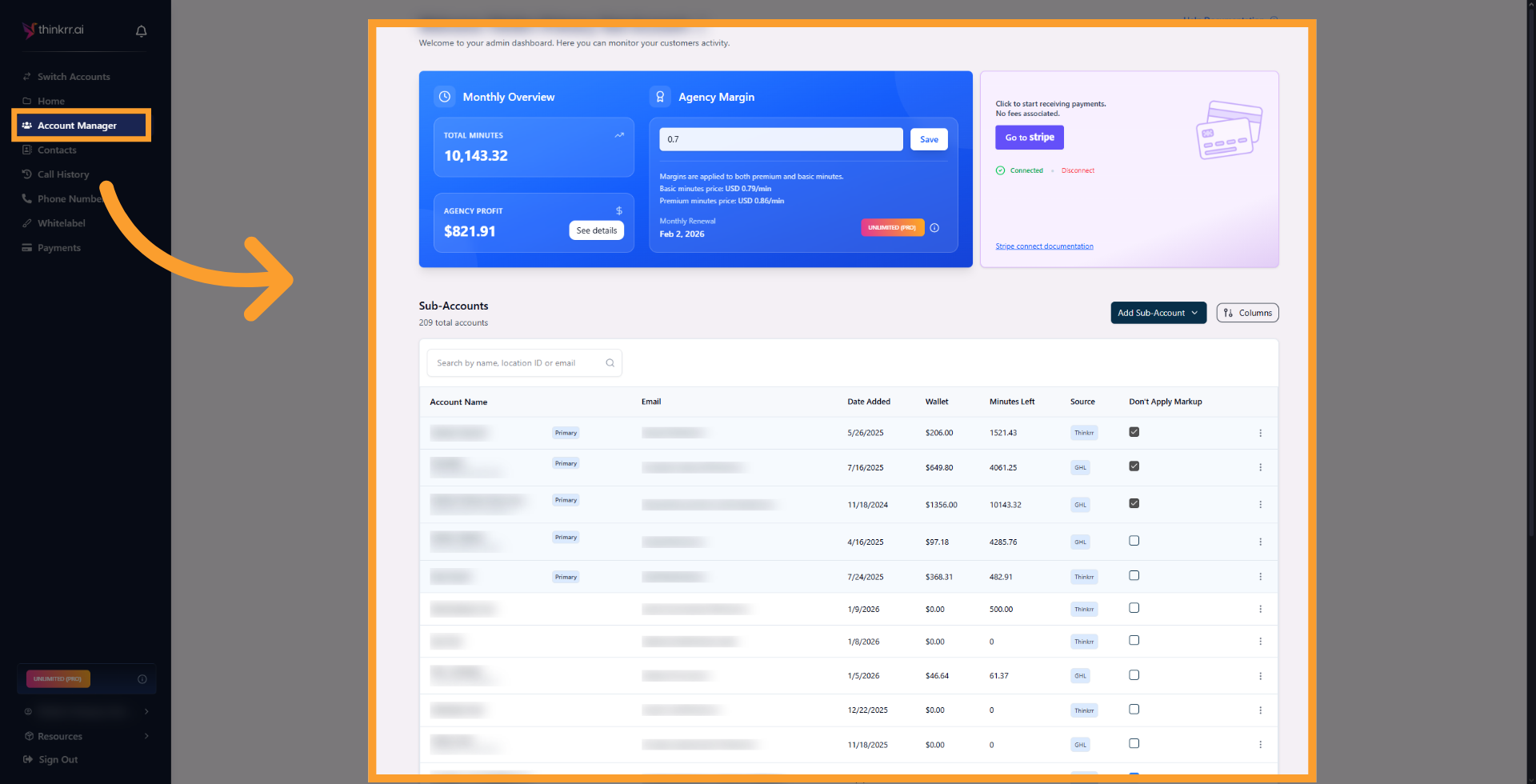
Sub-account management in thinkrr revolves around the relationship between your **Primary Sub-account** (agency operational account) and your **Secondary Sub-accounts** (individual client accounts). As an agency, you use the Agency Dashboard to monitor client usage, track account activity, calculate billing amounts, and manage profitability across your sub-accounts.
 ### Primary Sub-account (Agency Account)
The Primary Sub-account represents your agency’s operational base:
* Tracks:
* **Global total minutes** consumed across all sub-accounts.
* **Agency profit** generated through markups on client usage.
* **Plan renewal dates** and subscription management.
* Serves as the financial and operational overview for your agency.
* In legacy **Partner Plans**, it also holds and distributes **monthly allocated minutes** to Secondary Sub-accounts.
* **Adding or Managing Sub-Accounts:** From the **thinkrr Agency Home** page, navigate to **Account Manager** to:
* Add new sub-accounts.
* Update login emails for existing sub-accounts.
* View usage, balances, and client activity.
* Remove existing sub-accounts:
* Click the **three dots** beside the client account and select **Remove Sub-Account**.
* **Primary accounts cannot be removed.**
* Removing a sub-account frees a slot under your plan limit, allowing you to add another client if available.
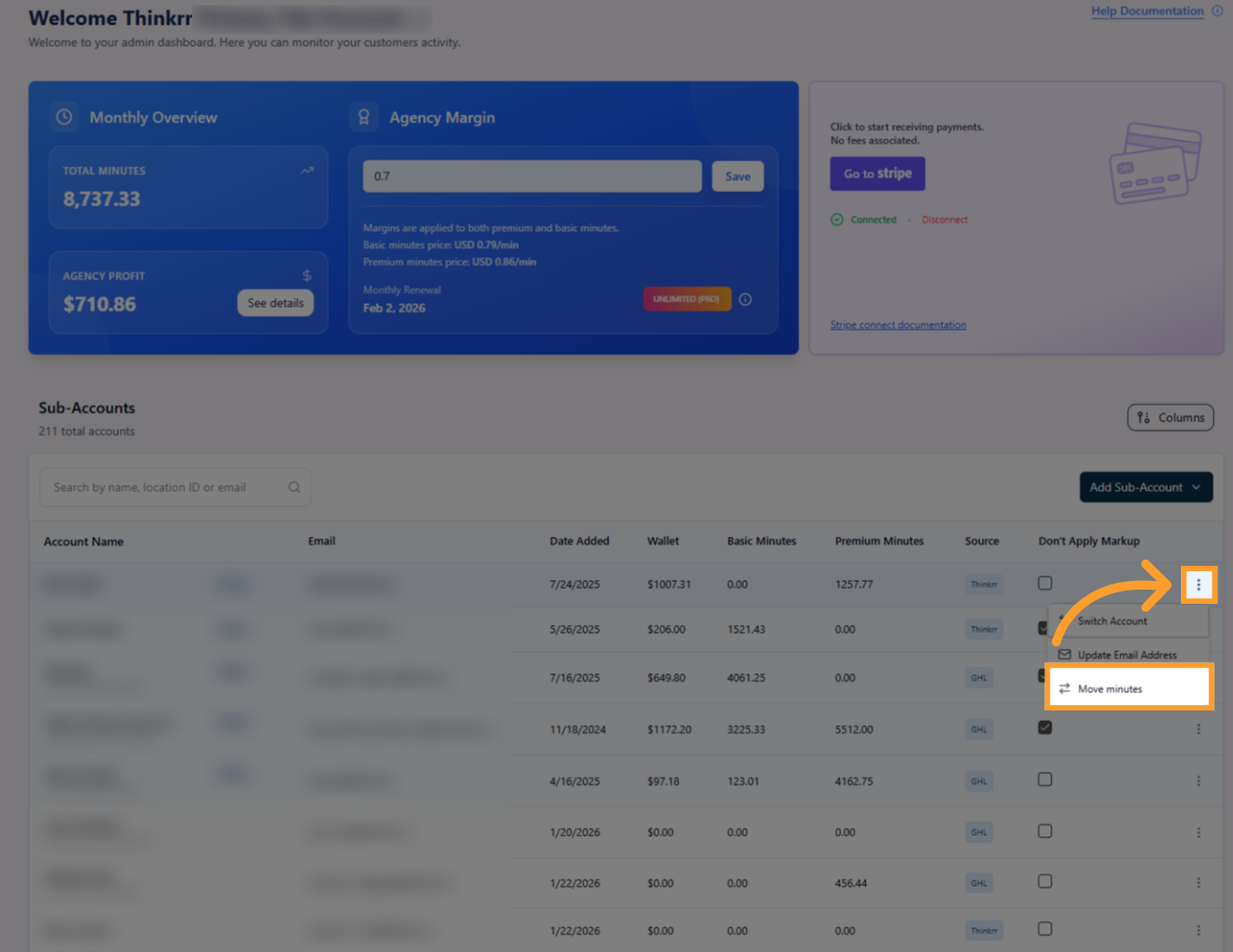
* **Transferring Minutes Between Sub-Accounts:** Agencies can move minutes between client accounts directly from Account Manager.
* Click the **three dots** beside the Primary Sub-account.
* Select **Move Minutes** to open the transfer interface.
### Primary Sub-account (Agency Account)
The Primary Sub-account represents your agency’s operational base:
* Tracks:
* **Global total minutes** consumed across all sub-accounts.
* **Agency profit** generated through markups on client usage.
* **Plan renewal dates** and subscription management.
* Serves as the financial and operational overview for your agency.
* In legacy **Partner Plans**, it also holds and distributes **monthly allocated minutes** to Secondary Sub-accounts.
* **Adding or Managing Sub-Accounts:** From the **thinkrr Agency Home** page, navigate to **Account Manager** to:
* Add new sub-accounts.
* Update login emails for existing sub-accounts.
* View usage, balances, and client activity.
* Remove existing sub-accounts:
* Click the **three dots** beside the client account and select **Remove Sub-Account**.
* **Primary accounts cannot be removed.**
* Removing a sub-account frees a slot under your plan limit, allowing you to add another client if available.
* **Transferring Minutes Between Sub-Accounts:** Agencies can move minutes between client accounts directly from Account Manager.
* Click the **three dots** beside the Primary Sub-account.
* Select **Move Minutes** to open the transfer interface.
 * Enter the number of **Basic** or **Premium** minutes you want to transfer.
* Select:
* The sub-account the minutes will be taken from
* The sub-account the minutes will be deposited into
* If the destination account uses a different markup, thinkrr automatically calculates the final minute amount received.
* Enter the number of **Basic** or **Premium** minutes you want to transfer.
* Select:
* The sub-account the minutes will be taken from
* The sub-account the minutes will be deposited into
* If the destination account uses a different markup, thinkrr automatically calculates the final minute amount received.
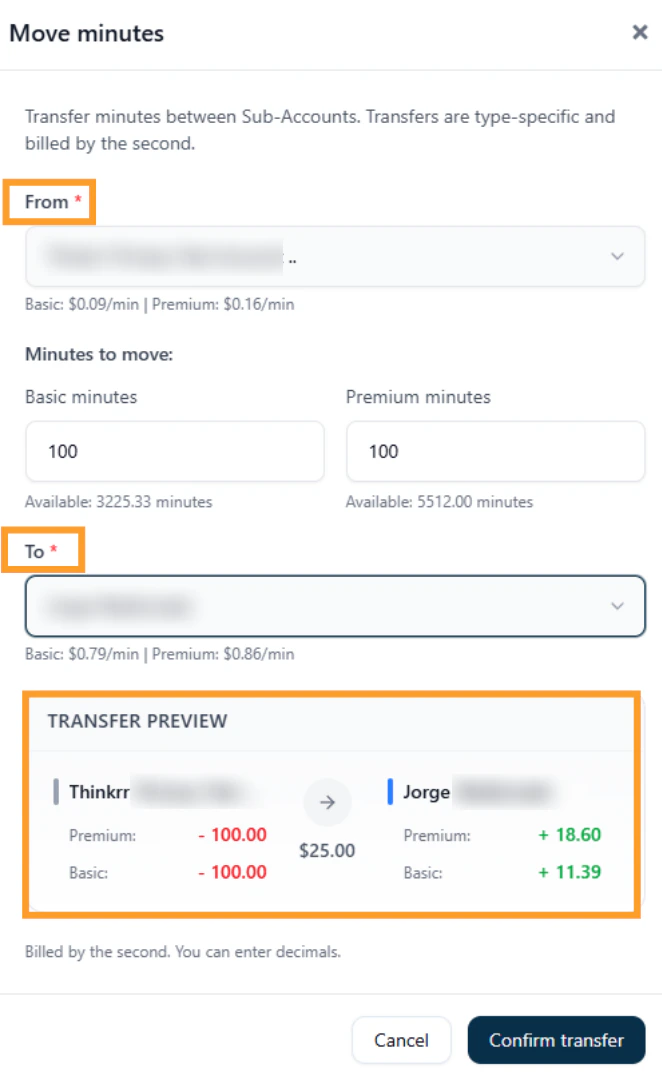 * Always review the calculated values before confirming, especially when transferring between accounts with different pricing markups.
> 💡 **Agency Tip:** If your plan has a sub-account cap (like **Agency Lite**), removing a sub-account restores one available slot that can be reassigned to a new client.
### Monthly Sub-Account Auto Allocation
In addition to manually transferring minutes, agencies can configure **Monthly Sub-Account Auto Allocation** to automatically purchase and assign minutes to a selected client account on a recurring monthly basis.
This allows you to:
* Allocate a fixed number of **Basic** and/or **Premium** minutes per month to a specific sub-account.
* Charge the allocation to the **primary account’s saved payment method**.
* Ensure clients receive consistent monthly minute coverage without manual transfers.
Auto Allocation purchases additional minutes specifically for the selected sub-account. It does not redistribute the Premium minutes included with your primary agency plan.
To configure this:
* Go to **Agency Dashboard > Account Manager**
* Open the **three-dot menu** beside the desired sub-account
* Select **Manage > Manage Auto Allocation**
For a full step-by-step setup guide and important billing considerations, see: [**Auto-Recharge & Auto Allocation**](/Auto-Recharge-and-Auto-Allocation)
***
### Secondary Sub-accounts (Client Accounts)
Secondary Sub-accounts represent your individual client accounts:
* Operate independently with their own:
* **Call scenarios** (campaigns and projects)
* **Usage reporting** (call volumes, statuses, wallet balances)
* **Billing cycle dates** and renewal management
* Clients consume minutes (and generate costs) based on actual call usage.
* Agencies manage:
* **Wallet balances** (remaining dollar value of minutes)
* **Spent amounts** (cost of minutes consumed during the period)
* **Profit margins** by applying markups over the base minute pricing
* Tracking consumption and wallet activity ensures that agencies can **bill clients accurately based on real usage**, rather than static allocations.
> Note: Sub-accounts can only be removed from within the **Primary (Agency) account**. To request or confirm removal, access **Account Manager** in your agency dashboard and use the **three-dot menu** beside the sub-account name.
> 💡 **Agency Tip:** Use the **Wallet Balance**, **Spent Amount**, and **Total Minutes Used** metrics in the Reporting section to calculate how much to invoice each client. Profit tracking is automated based on the difference between your base cost and the client-facing markup.
## Profits & Stripe Payouts
When clients purchase minutes, the difference between the base price and your markup is tracked as **agency profit**. Once your total earnings reach a certain value, payouts are processed through [**Stripe Connect**](/Profits-and-Payouts) — which must be configured from your **Agency Dashboard > Account Manager**.
Make sure you’ve connected your Stripe account to receive automated payouts. To learn more, see [**Profits & Payouts**](/Profits-and-Payouts).
***
## FAQs & Troubleshooting
### General Questions
The **Primary Sub-account** belongs to the agency and acts as the operational hub, tracking global usage and profitability.\
**Secondary Sub-accounts** represent individual client accounts, operating independently with their own campaigns, reporting, and billing cycles.
Go to the **Agency Dashboard > Account Manager**.\
From there, you can add new sub-accounts, update existing account email addresses, monitor usage and balance details, and remove existing ones.
Minute distribution applies only to agencies operating under legacy **Partner Plans**. New agency accounts operate under a consumption-based model, where billing and profit are based on actual usage and wallet balances.
### Configuration
Each Secondary Sub-account’s billing cycle is based on the **subscription start date**.\
The **billing date** is visible in the Reporting section and helps agencies forecast client renewals and charges.
Agency profit is calculated by applying a **markup** over the base minute price.\
Use the **Reporting** section to review wallet balances, spent amounts, and profit margins per client.
Yes. The Reporting section allows you to apply **custom date ranges** for all usage and call activity data, making it easier to review performance over specific periods.
### Usage and Results
Agencies should monitor:
* **Wallet balance** (remaining prepaid value).
* **Spent amount** (total usage for the billing period).
* **Total minutes used**.\
Using these metrics, agencies can invoice clients based on their real usage, ensuring accurate billing and maintaining healthy profit margins.
***
For additional questions or guidance, try using our [**Virtual Support Agent**](/Thinkrr-Support-Agent)! Available 24/7 to help resolve most issues quickly at [thinkrr.ai/support](https://thinkrr.ai/support).
If you still need assistance, visit our support site at [help.thinkrr.ai](http://help.thinkrr.ai) and submit a [Ticket](/Support-Ticket-System) or contact our team directly at [hello@thinkrr.ai](mailto:hello@thinkrr.ai).
* Always review the calculated values before confirming, especially when transferring between accounts with different pricing markups.
> 💡 **Agency Tip:** If your plan has a sub-account cap (like **Agency Lite**), removing a sub-account restores one available slot that can be reassigned to a new client.
### Monthly Sub-Account Auto Allocation
In addition to manually transferring minutes, agencies can configure **Monthly Sub-Account Auto Allocation** to automatically purchase and assign minutes to a selected client account on a recurring monthly basis.
This allows you to:
* Allocate a fixed number of **Basic** and/or **Premium** minutes per month to a specific sub-account.
* Charge the allocation to the **primary account’s saved payment method**.
* Ensure clients receive consistent monthly minute coverage without manual transfers.
Auto Allocation purchases additional minutes specifically for the selected sub-account. It does not redistribute the Premium minutes included with your primary agency plan.
To configure this:
* Go to **Agency Dashboard > Account Manager**
* Open the **three-dot menu** beside the desired sub-account
* Select **Manage > Manage Auto Allocation**
For a full step-by-step setup guide and important billing considerations, see: [**Auto-Recharge & Auto Allocation**](/Auto-Recharge-and-Auto-Allocation)
***
### Secondary Sub-accounts (Client Accounts)
Secondary Sub-accounts represent your individual client accounts:
* Operate independently with their own:
* **Call scenarios** (campaigns and projects)
* **Usage reporting** (call volumes, statuses, wallet balances)
* **Billing cycle dates** and renewal management
* Clients consume minutes (and generate costs) based on actual call usage.
* Agencies manage:
* **Wallet balances** (remaining dollar value of minutes)
* **Spent amounts** (cost of minutes consumed during the period)
* **Profit margins** by applying markups over the base minute pricing
* Tracking consumption and wallet activity ensures that agencies can **bill clients accurately based on real usage**, rather than static allocations.
> Note: Sub-accounts can only be removed from within the **Primary (Agency) account**. To request or confirm removal, access **Account Manager** in your agency dashboard and use the **three-dot menu** beside the sub-account name.
> 💡 **Agency Tip:** Use the **Wallet Balance**, **Spent Amount**, and **Total Minutes Used** metrics in the Reporting section to calculate how much to invoice each client. Profit tracking is automated based on the difference between your base cost and the client-facing markup.
## Profits & Stripe Payouts
When clients purchase minutes, the difference between the base price and your markup is tracked as **agency profit**. Once your total earnings reach a certain value, payouts are processed through [**Stripe Connect**](/Profits-and-Payouts) — which must be configured from your **Agency Dashboard > Account Manager**.
Make sure you’ve connected your Stripe account to receive automated payouts. To learn more, see [**Profits & Payouts**](/Profits-and-Payouts).
***
## FAQs & Troubleshooting
### General Questions
The **Primary Sub-account** belongs to the agency and acts as the operational hub, tracking global usage and profitability.\
**Secondary Sub-accounts** represent individual client accounts, operating independently with their own campaigns, reporting, and billing cycles.
Go to the **Agency Dashboard > Account Manager**.\
From there, you can add new sub-accounts, update existing account email addresses, monitor usage and balance details, and remove existing ones.
Minute distribution applies only to agencies operating under legacy **Partner Plans**. New agency accounts operate under a consumption-based model, where billing and profit are based on actual usage and wallet balances.
### Configuration
Each Secondary Sub-account’s billing cycle is based on the **subscription start date**.\
The **billing date** is visible in the Reporting section and helps agencies forecast client renewals and charges.
Agency profit is calculated by applying a **markup** over the base minute price.\
Use the **Reporting** section to review wallet balances, spent amounts, and profit margins per client.
Yes. The Reporting section allows you to apply **custom date ranges** for all usage and call activity data, making it easier to review performance over specific periods.
### Usage and Results
Agencies should monitor:
* **Wallet balance** (remaining prepaid value).
* **Spent amount** (total usage for the billing period).
* **Total minutes used**.\
Using these metrics, agencies can invoice clients based on their real usage, ensuring accurate billing and maintaining healthy profit margins.
***
For additional questions or guidance, try using our [**Virtual Support Agent**](/Thinkrr-Support-Agent)! Available 24/7 to help resolve most issues quickly at [thinkrr.ai/support](https://thinkrr.ai/support).
If you still need assistance, visit our support site at [help.thinkrr.ai](http://help.thinkrr.ai) and submit a [Ticket](/Support-Ticket-System) or contact our team directly at [hello@thinkrr.ai](mailto:hello@thinkrr.ai).