

Overview
By linking your Google Calendar, you create a two-way synchronization that enhances organizational efficiency while maintaining flexibility with existing scheduling tools.Details
Integrating Google Calendar with GHL is straightforward and provides enhanced scheduling capabilities:Syncing Your Google Calendar with GHL
To connect your Google Calendar:
- Navigate to the Settings in the GHL side-panel
- Click on My Profile
-
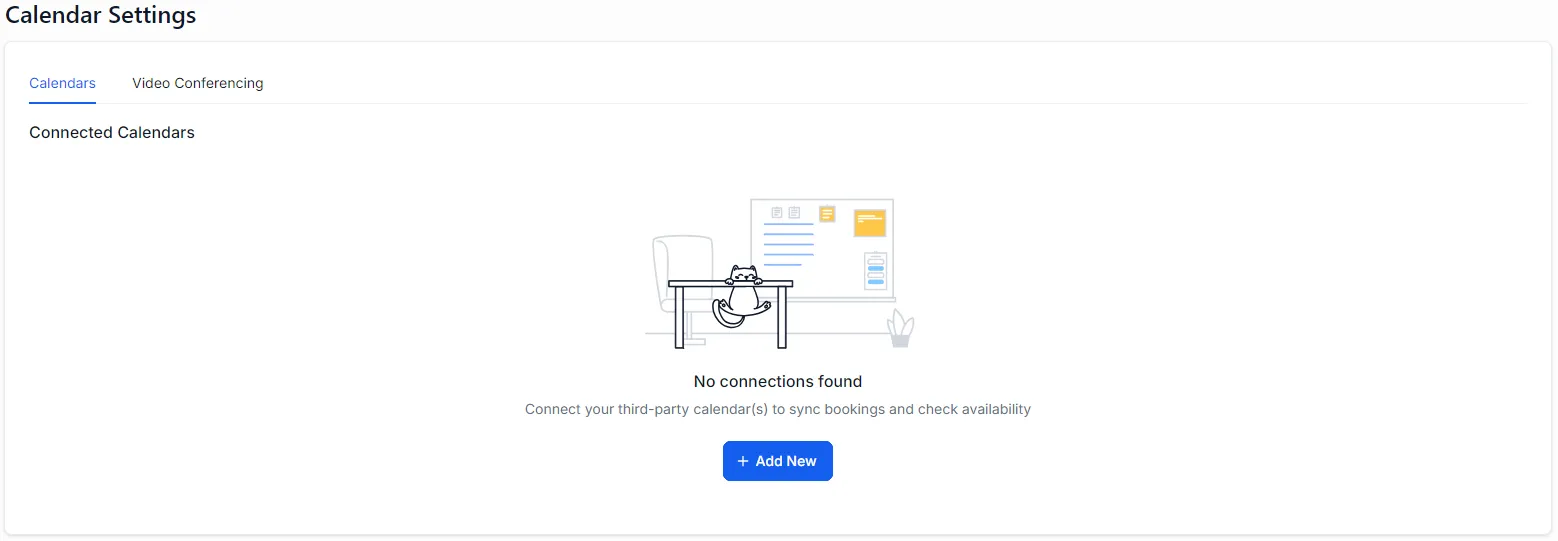
Scroll to the bottom to find Calendar Settings, where you’ll see options for Calendars and Video Conferencing
-
Click Add New, then select Google Calendar from the list of supported providers
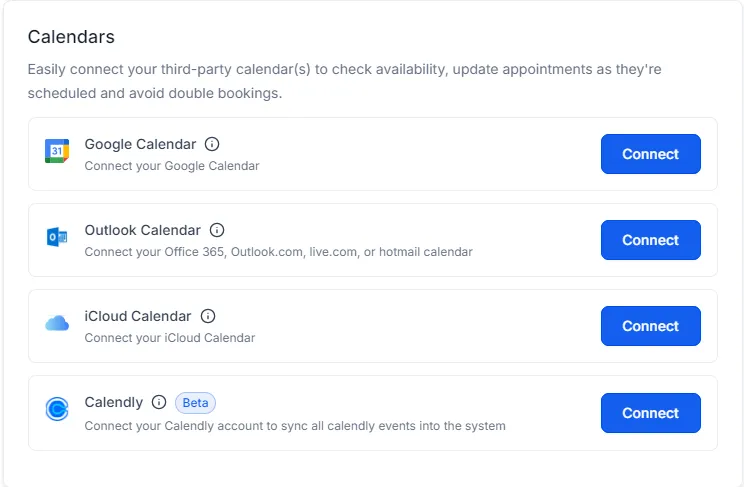
- Follow the prompts to log in and authorize access to your Google account
-
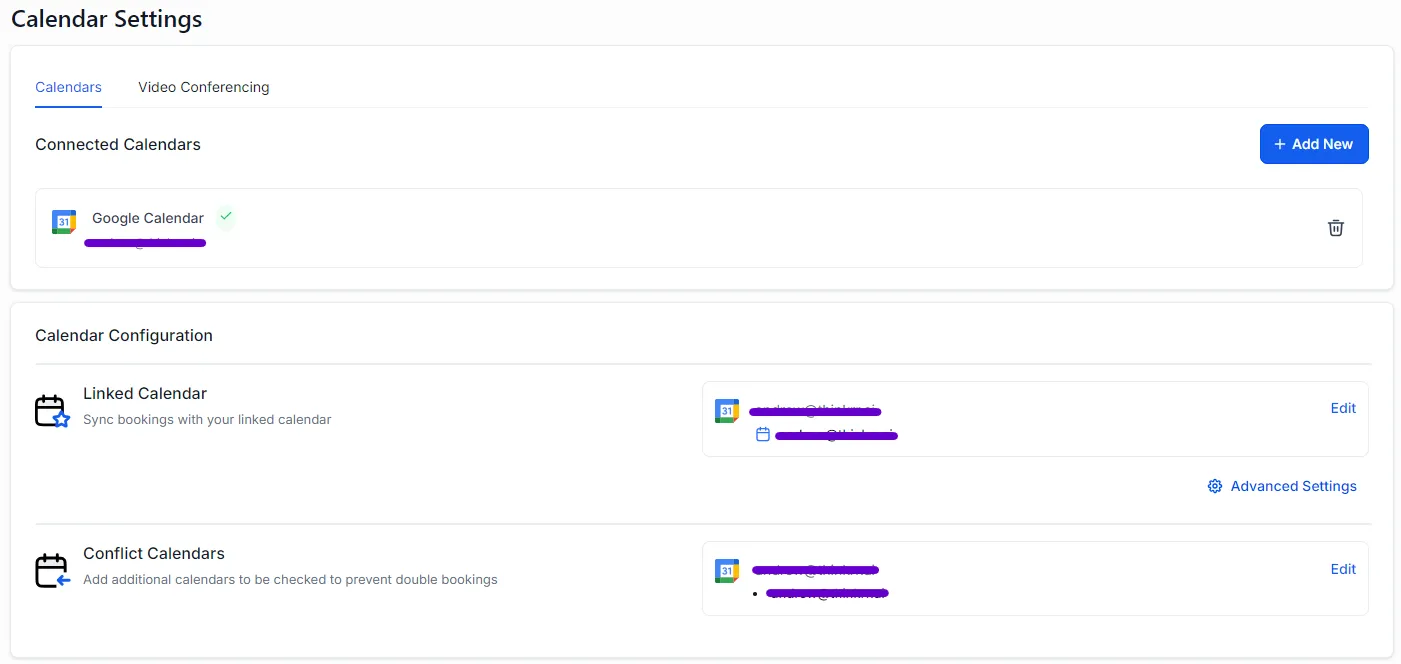
Once connected, your calendar will appear under Connected Calendars with a green checkmark
Calendar Configurations
After linking your calendar, you’ll see two key configuration options:
- Linked Calendars:
- This enables two-way synchronization between your GHL calendar and your Google Calendar
- Events booked by thinkrr agents in your GHL calendar will automatically appear in your Google Calendar
- Useful for syncing appointments across devices or software connected to your Google Calendar
- Conflict Calendars:
- This informs GHL and its calendar of your availability based on your linked Google Calendar
- Conflicts or unavailable times in your Google Calendar will prevent overlapping appointments in your GHL calendar
- Ensures thinkrr agents only book appointments during available times
thinkrr’s Role in Calendar Management
- thinkrr AI agents rely on GHL calendars to schedule meetings and check availability
- A GHL calendar must be active and configured for thinkrr to function properly with scheduling
- Multiple third-party calendars, including Google, can be linked and managed to fit user preferences and needs
FAQs & Troubleshooting
Calendar Integration
Why do I need a GHL calendar if I already use Google Calendar?
Why do I need a GHL calendar if I already use Google Calendar?
thinkrr AI Agents require a GHL calendar to book appointments or check availability. Linked Google Calendars provide a two-way sync, allowing thinkrr bookings to reflect in your Google Calendar, and for events in your Google Calendar to inform GHL and thinkrr of your availability to avoid double bookings.
What are Linked Calendars and Conflict Calendars?
What are Linked Calendars and Conflict Calendars?
- Linked Calendars: Synchronizes events between GHL and Google Calendar for easy access across platforms.
- Conflict Calendars: Uses your Google Calendar to inform GHL of your availability, preventing scheduling conflicts e.g. Holiday events, work events, religious events etc.
Can I link multiple Google Calendars?
Can I link multiple Google Calendars?
Yes, you can link multiple Google Calendars or other third-party calendars to GHL and thinkrr to match your scheduling needs.
Scheduling and Bookings
Will appointments booked by thinkrr appear in my Google Calendar?
Will appointments booked by thinkrr appear in my Google Calendar?
Yes, any appointments scheduled by thinkrr in your GHL calendar will be mirrored in your linked Google Calendar via the Linked Calendars feature.
Can I use thinkrr for appointments outside the times blocked in my Google Calendar?
Can I use thinkrr for appointments outside the times blocked in my Google Calendar?
No, thinkrr respects the availability rules defined by Conflict Calendars, ensuring appointments are scheduled only during available times.
How can I manage the appearance of thinkrr bookings in Google Calendar?
How can I manage the appearance of thinkrr bookings in Google Calendar?
Currently there are no customization options, but we are working on allowing users to modify calendar events to make them stand out more.
For additional questions or guidance, try using our Virtual Support Agent! Available 24/7 to help resolve most issues quickly at thinkrr.ai/support. If you still need assistance, visit our support site at help.thinkrr.ai and submit a Ticket or contact our team directly at hello@thinkrr.ai.