

Details
The NPS Survey Scenario is one of the two outbound projects automatically included with every property connected through Hostaway. Once your Hostaway account is connected, each property in thinkrr comes preloaded with two default outbound scenarios — the Welcome Call and the NPS Survey. You can enable or disable these scenarios individually per property. When disabled, they remain inactive and will not trigger any outbound calls.💡 Note: You can configure these scenarios only after a property has been added — either manually or via a connected Hostaway account.This Scenario is designed to collect post-checkout feedback from guests automatically after their stay. Using synced Hostaway data — including the guest’s name, booking details, and property information — the AI Agent places a call to thank the guest for their stay, measure satisfaction, and record feedback. Based on the guest’s sentiment, the AI can escalate issues to a property manager, collect neutral feedback, or send a review link to happy guests.
Key Features
- Purpose
- Automate post-checkout feedback collection.
- Capture satisfaction scores (NPS) directly through voice interaction.
- Escalate negative responses for immediate follow-up.
- Drive more positive reviews with automated SMS follow-ups.
{client_firstname}, {property_name}, or {representative_name} for personalization. The structure mirrors other outbound scenarios in thinkrr, making it easy to reuse familiar patterns across projects.
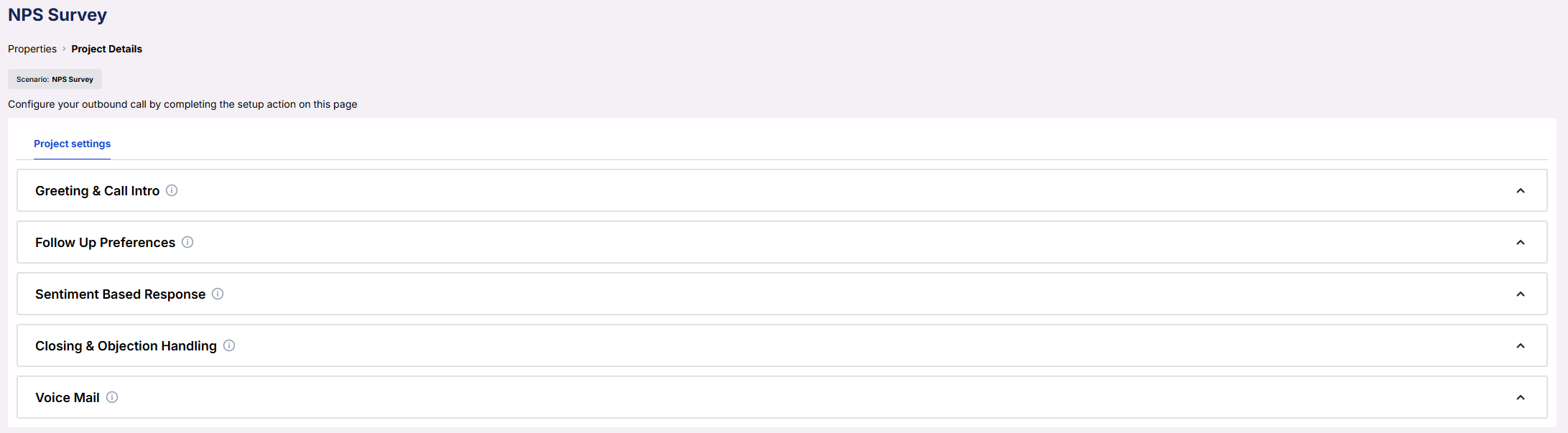
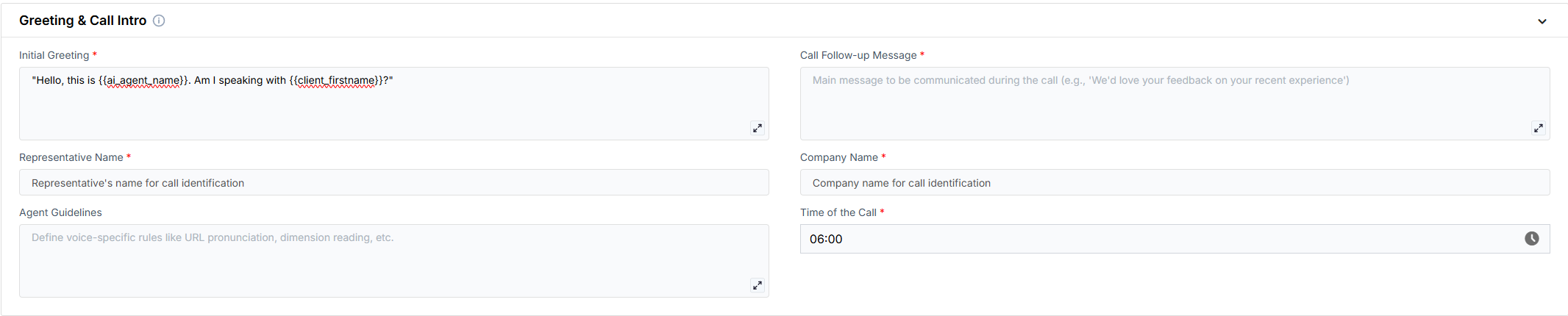
Greeting & Call Intro
- Initial Greeting – The opening line to identify the caller and confirm the guest’s identity.
- Call Follow-up Message – A short line that sets up the survey question.
- Representative Name – The manager or rep name to reference on the call.
- Company Name – The business or brand name to reference.
- Agent Guidelines – Brief guardrails on tone/behavior (concise rules only).
- Time of the Call – The call is automatically triggered the day after checkout at the time you specify.
Example: If you set it to 10:00 AM, the call will be made at 10:00 AM local property time.⚠️ Important: Ensure your call time is set during standard post-checkout hours so guests receive the call after their stay has ended.
Follow Up Preferences
- Enable SMS – Toggle to send a follow-up text after the call.

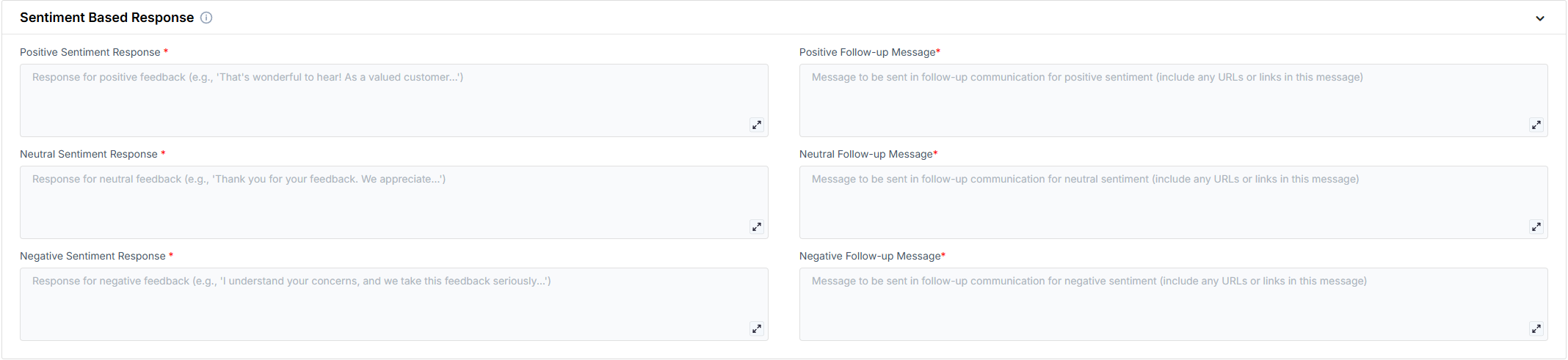
Sentiment Based Response
- Positive Sentiment Response – What the AI says when the guest is happy.
- Positive Follow-up Message – Optional SMS text for happy guests.
- Neutral Sentiment Response – What the AI says for mixed/neutral feedback.
- Neutral Follow-up Message – Optional SMS text for neutral cases.
- Negative Sentiment Response – What the AI says when the guest is unhappy.
- Negative Follow-up Message – Optional SMS text for unhappy guests.
Closing & Objection Handling
- Closing Statement – The final line to end the call politely.
- FAQ – Short answers to common questions you expect here.
- Objection Handling – Brief guidance/scripts for typical pushbacks.

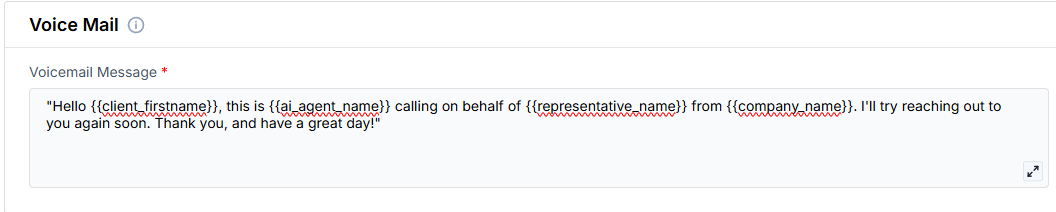
Voice Mail
- Voicemail Message – The message to leave if the guest doesn’t answer.
Example Configuration
Greeting & Call Intro- Initial Greeting
Hello, this is . Am I speaking with ? - Call Follow-up Message
Thanks for staying with us at . I’d love to quickly ask about your experience. - Representative Name
Jordan Lee - Company Name
Seaside Villas - Agent Guidelines
Be friendly and concise; avoid jargon; acknowledge feedback; escalate issues. - Time of the Call
18:00
- Enable SMS
Yes
- Positive Sentiment Response
That’s wonderful to hear! We’re so glad you enjoyed your stay. - Positive Follow-up Message
Thanks so much for the feedback — I’ll text you a quick link to share a review. - Neutral Sentiment Response
Thank you for sharing. If there’s anything we could improve, I’ll pass your notes to . - Neutral Follow-up Message
Appreciate the input — replying to this text with any suggestions is super helpful. - Negative Sentiment Response
I’m really sorry to hear that, . I’ll notify right away so our team can follow up. - Negative Follow-up Message
I’ve flagged this for our team — you’ll hear from us shortly. Thanks for letting us know.
- Closing Statement
Thank you for your time today, have a great day! - FAQ
Late checkout availability; parking info; deposit/hold release timing. - Objection Handling
If busy: offer a quick follow-up window. If uninterested: thank them and end politely.
- Voicemail Message
Hi, this is with . Thanks again for staying at . I’m reaching out for a quick feedback call — I’ll also send a short text in case that’s easier. Have a great day!
FAQs & Troubleshooting
General Questions
When does the NPS Survey call trigger?
When does the NPS Survey call trigger?
The call is automatically placed the day after checkout at the time you specify.
Example: If set to 10:00 AM, the call will be made at 10:00 AM local property time.
Example: If set to 10:00 AM, the call will be made at 10:00 AM local property time.
How does the AI handle different guest responses?
How does the AI handle different guest responses?
The AI uses conditional logic based on sentiment detection. Positive responses trigger review links, neutral responses collect feedback, and negative responses escalate to management.
Can I edit the core question or tone?
Can I edit the core question or tone?
Yes, every message field can be customized in the Scenario configuration panel under the property’s Outbound tab.
Configuration
Can I change when the call happens?
Can I change when the call happens?
You can choose the time of day for the call to happen.
The call is always made one day after checkout at your chosen time.
The call is always made one day after checkout at your chosen time.
Does the Scenario support SMS follow-ups?
Does the Scenario support SMS follow-ups?
Yes. You can enable automatic SMS follow-ups for guests who provide positive feedback, typically containing a review link.
Do I need Hostaway connected for this to work?
Do I need Hostaway connected for this to work?
Yes. The NPS Survey Scenario relies on Hostaway data to identify guests, reservations, and check-out details. Manual properties do not currently support automated outbound surveys.
Usage and Results
Where can I see NPS responses?
Where can I see NPS responses?
All call records and guest feedback logs appear under the Outbound tab and Property Activity Log in thinkrr.
Can negative feedback trigger alerts?
Can negative feedback trigger alerts?
Yes. You can configure escalation workflows so that any negative response automatically sends a notification or triggers a follow-up task for the manager.
For additional questions or guidance, try using our Virtual Support Agent!
Available 24/7 to help resolve most issues quickly at thinkrr.ai/support. If you still need assistance, visit our support site at help.thinkrr.ai and submit a Ticket or contact our team directly at hello@thinkrr.ai.