

Details
A Concierge Inbound Agent is capable of:- Greeting guests and confirming bookings or stay details.
- Providing real-time information about check-in, amenities, or property rules.
- Sharing local recommendations and handling guest requests.
- Routing calls or sending notifications to property managers when escalation is needed.
Configuring the Concierge Role
Step 1: Add Property
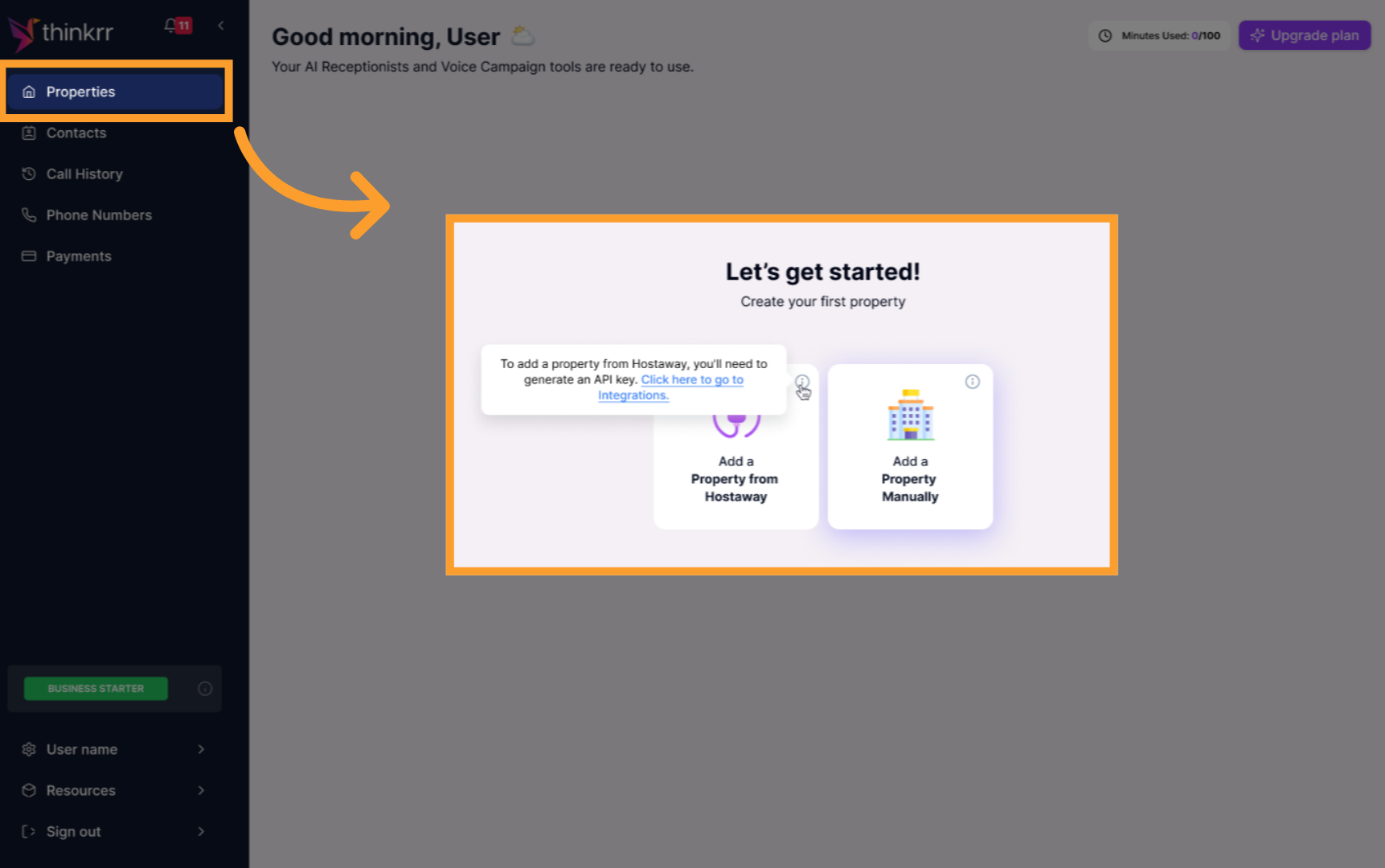
- Go to the Properties section from the thinkrr sidebar.
-
Click Add New Property.
Step 2: Configure Property Settings
-
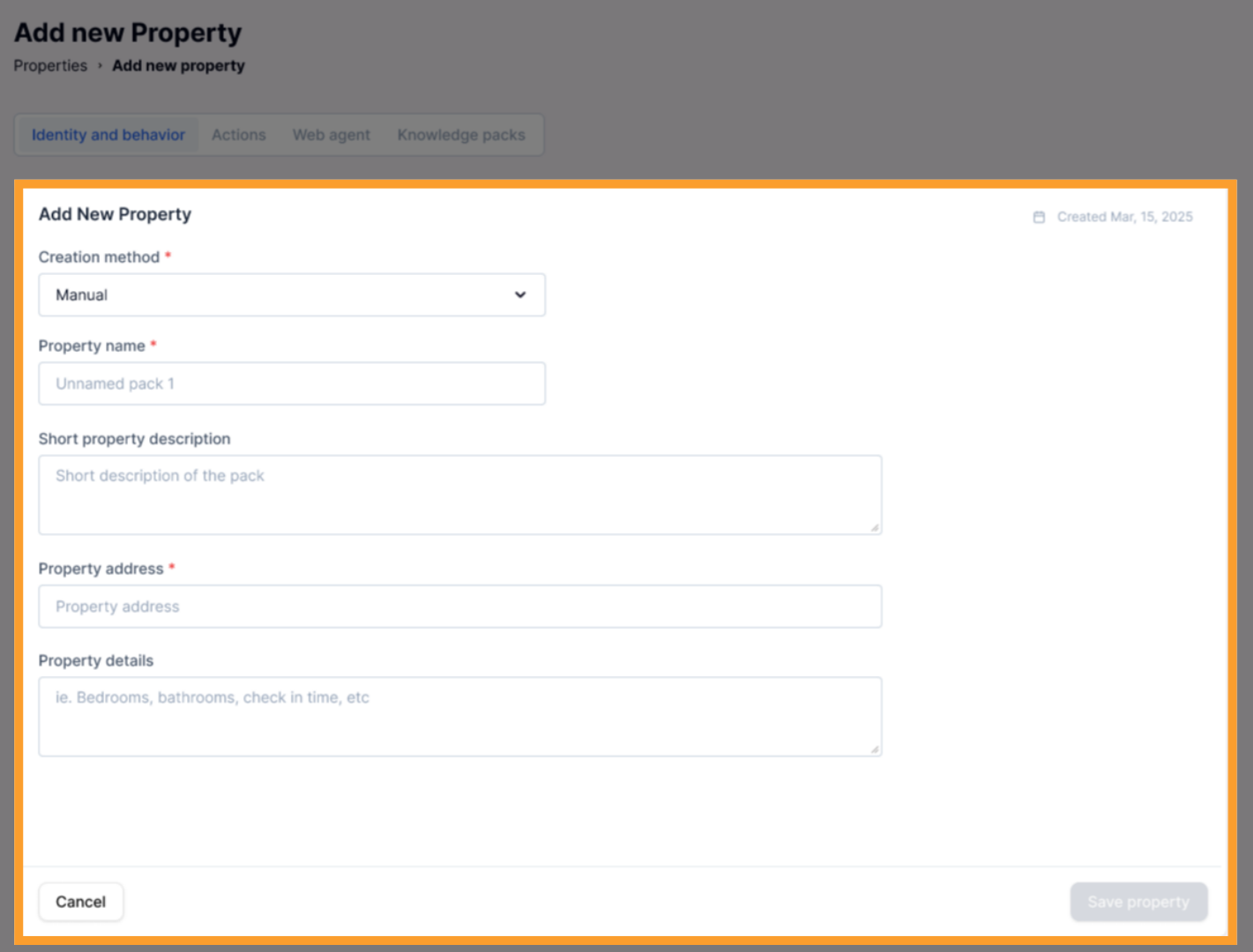
Open the newly added property to configure the following fields:
- Creation Method* – Choose how the property is added:
- Manual: Does not require integration with any system.
- Hostaway: Requires an active Hostaway integration to sync data.
- Property Name* – Enter the name of the property.
- Short Property Description* – Provide a short summary or description.
- Property Address* – Enter the physical address of the property.
- Property Details (read-only) – Auto-filled for Hostaway-connected properties, showing data such as bedrooms, bathrooms, check-in/check-out times, and amenities.
- Creation Method* – Choose how the property is added:
- Properties added manually require all fields to be filled in manually.
-
Hostaway-connected properties will automatically sync these details and update periodically.
Step 3: Create or Activate the Concierge
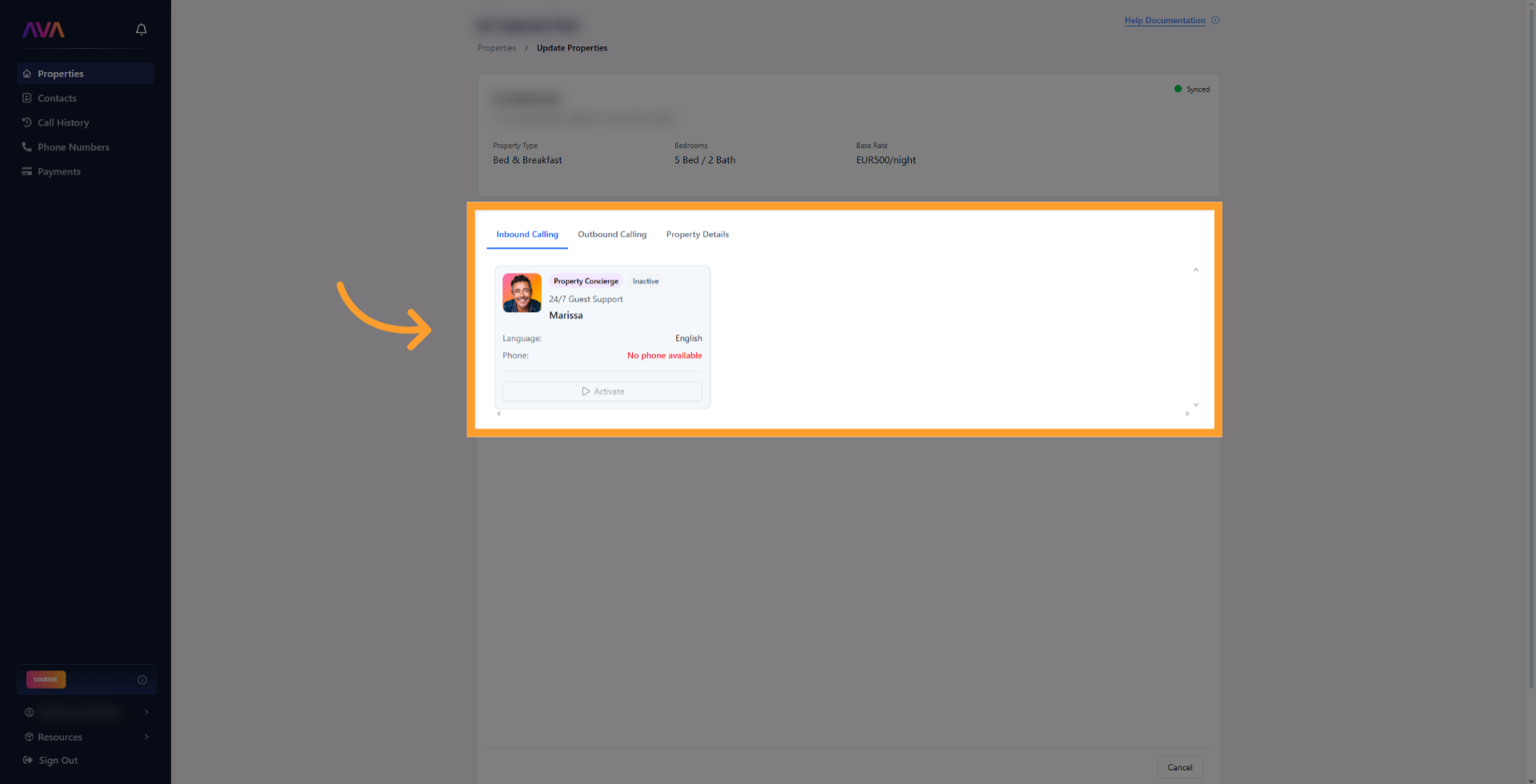
- Each property has one pre-created concierge agent (inactive by default).
- You can activate it directly from the Inbound tab or create a new one manually if needed.
- Choose deployment type:
- Over the phone
- On the web via a Web Widget
- Or both
4. Defining the Concierge’s Behavior
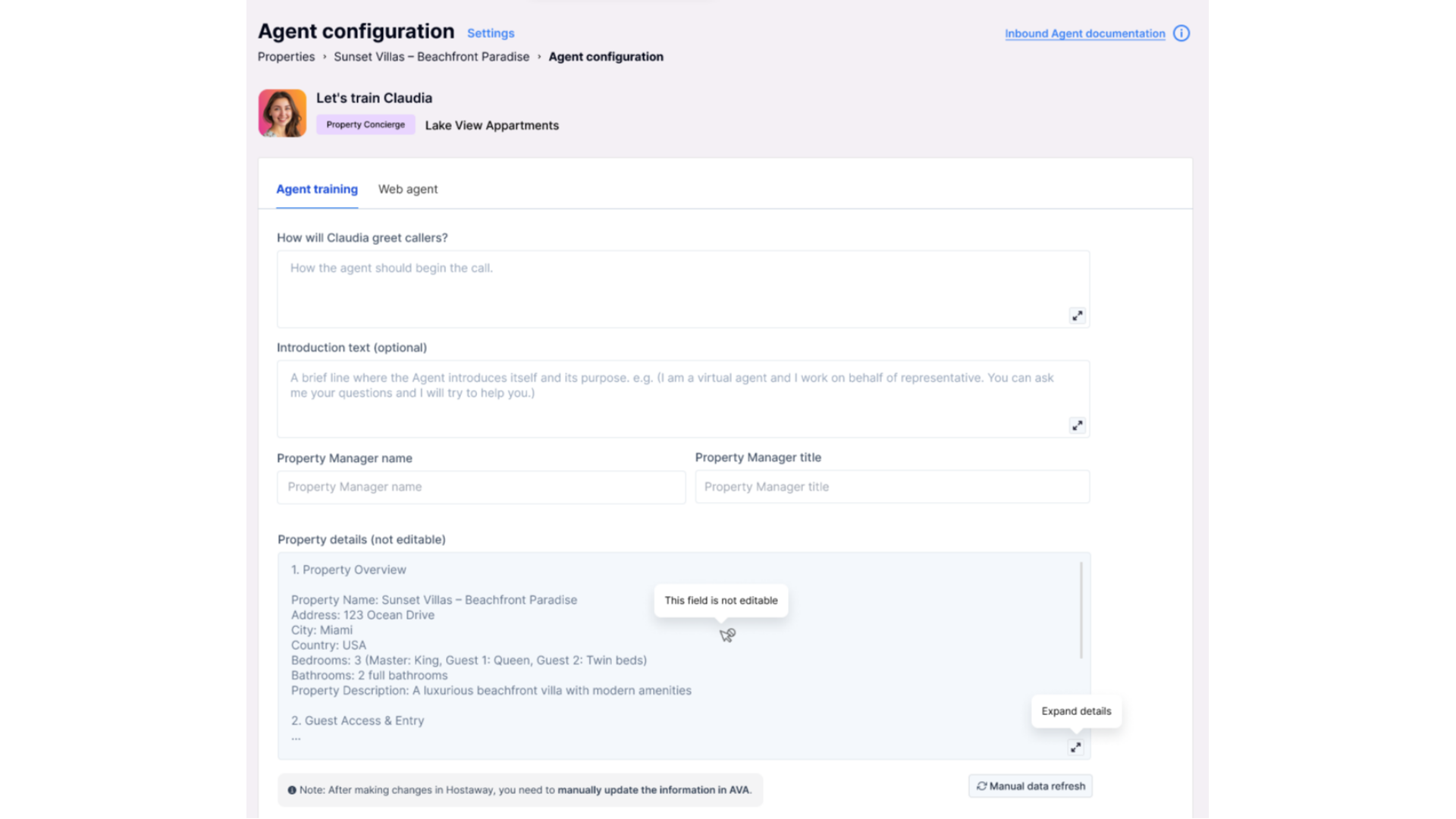
After selecting the Concierge role, you’ll train your AI to properly represent your property or brand.Unlike other roles, the Concierge automatically populates many fields using Hostaway property data. The following input fields help you tailor its responses:
- Greeting – How the Concierge answers calls (e.g., “Welcome to Seaside Villas, your virtual concierge speaking.”)
- Introduction Text – Optional message explaining the AI’s role.
- Property Manager Name – The manager or host the agent refers to.
- Property Manager Title – The title of that person, such as “Host” or “Guest Experience Manager.”
- Property Details – Auto-filled from Hostaway (address, amenities, Wi-Fi, check-in/out times).
- Additional Details – Notes like “Early check-in available on request.”
-
Local Recommendations – Restaurants, landmarks, or experiences you’d like highlighted.
Optional: Configure the Web Widget
Optional: Configure the Web Widget
If your Concierge Agent is deployed on the web, you can customize its widget appearance and placement using the Web Agent tab.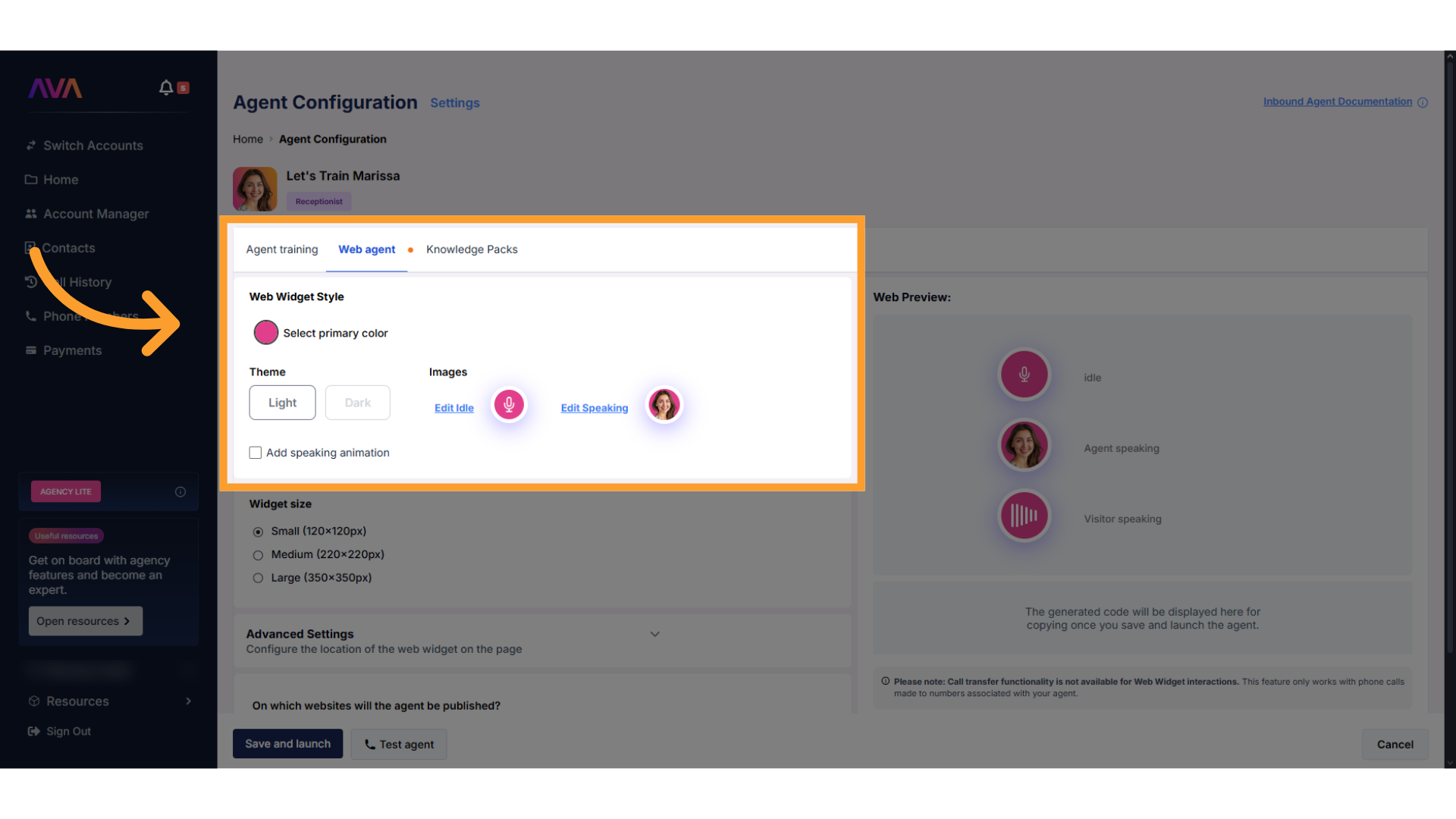
Web Widget Style
- Primary Color – Match your website branding.
- Theme – Choose Light or Dark.
- Idle Image and Speaking Image – Control how the Concierge looks when idle or talking.
- Speaking Animation Toggle – Enable animation while the AI speaks.
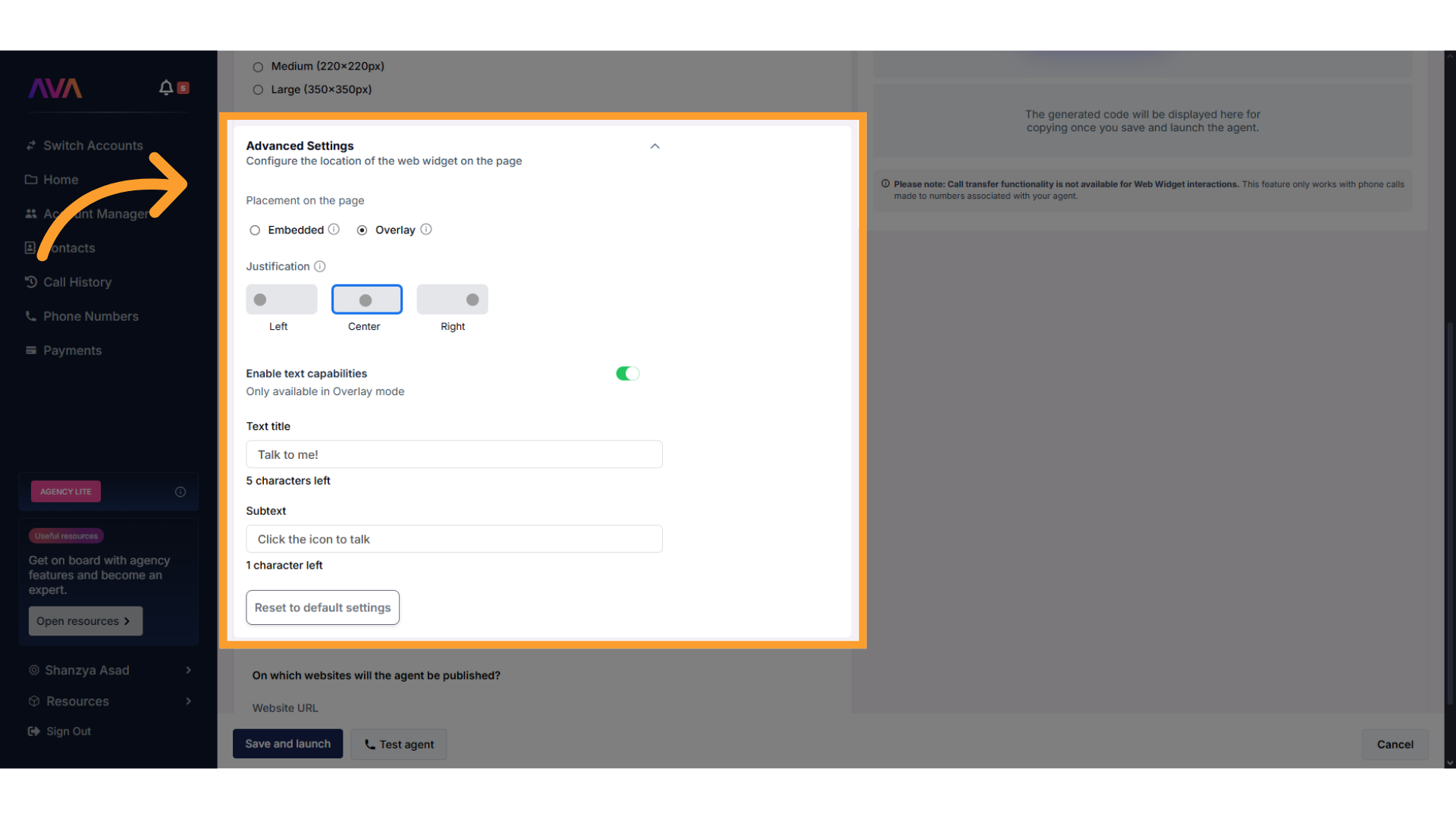
Advanced Settings
- Choose Embedded or Overlay placement.
- Justify Left, Center, or Right.
- Enable on-screen text (Overlay only).
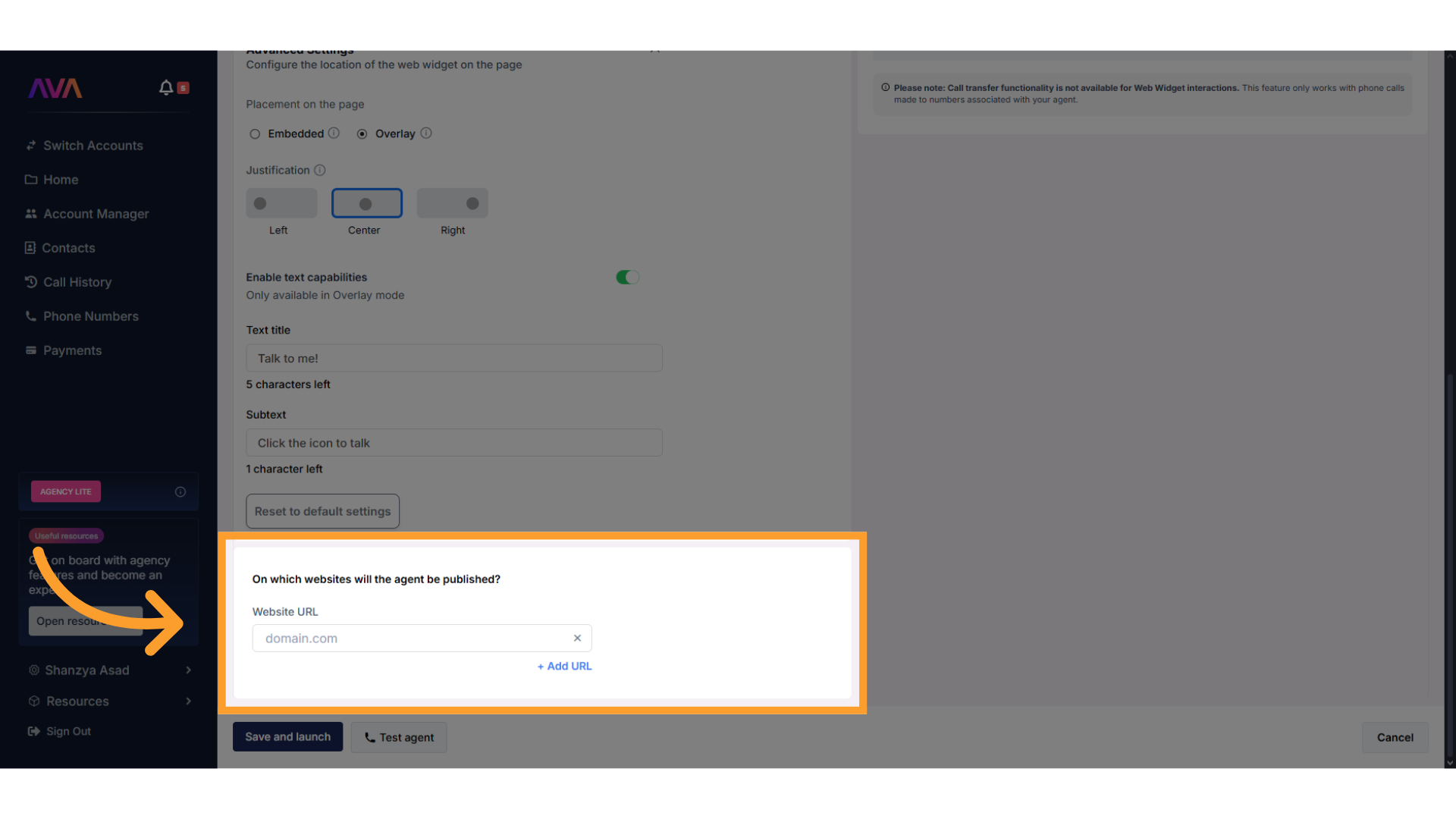
Optional: Add a Knowledge Pack
Optional: Add a Knowledge Pack
Knowledge Packs let your Concierge reference additional documents or URLs beyond what’s imported from Hostaway.
This is ideal for adding house manuals, FAQs, or brand policies.Supported plans:
This is ideal for adding house manuals, FAQs, or brand policies.Supported plans:
- Business Professional: 1 Pack
- Business Growth: 2 Packs
- Agency Lite: 1 Pack
- Agency Unlimited: 2 Packs
- In the agent configuration screen, clickon the **Knowledge Packs **tab.
- Click Create New Knowledge Pack.
- Choose to Upload Files (.pdf, .txt, .docx, etc.) or Enter URLs to scan.
- You can edit, delete, or toggle packs on/off anytime.
5. Assigning Actions to the Concierge AI
Once your agent’s behavior and optional modules are configured, click on theActions tab. Each action appears as a toggle switch:- Turning a toggle on opens a configuration sidebar.
- Once configured, the setup will be retained, even if later turned off.
-
Re-enabling the toggle restores the saved configuration instantly.
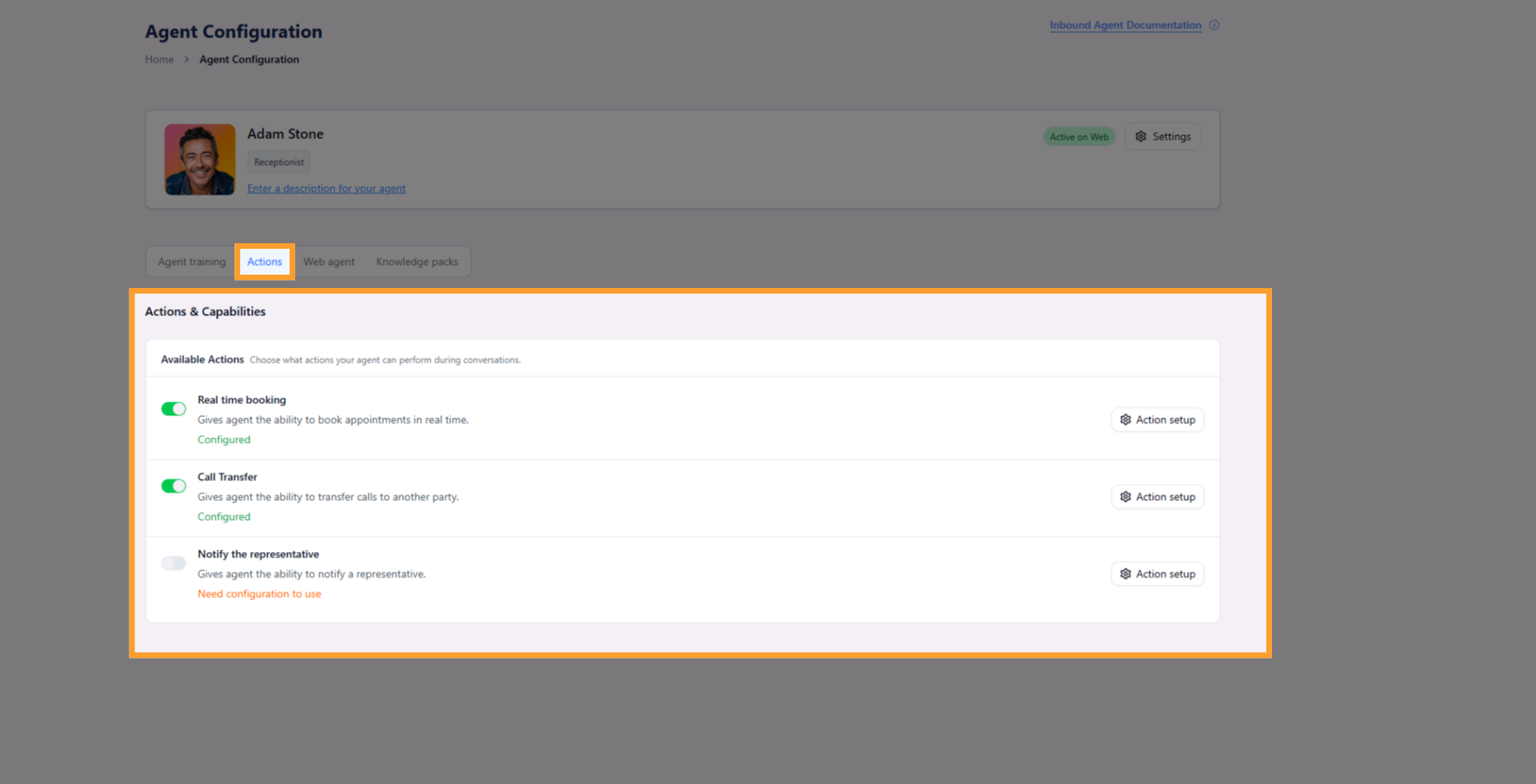
Call Transfer
- Enter the phone number to transfer to.
- Define when the transfer should occur.
- Add a message to be spoken before the transfer (e.g., “Let me connect you to someone who can help with that.”).
- Multiple call transfers can be set up with unique hours and conditions. If two conditions are true at once, the system prioritizes the first configuration in the list.
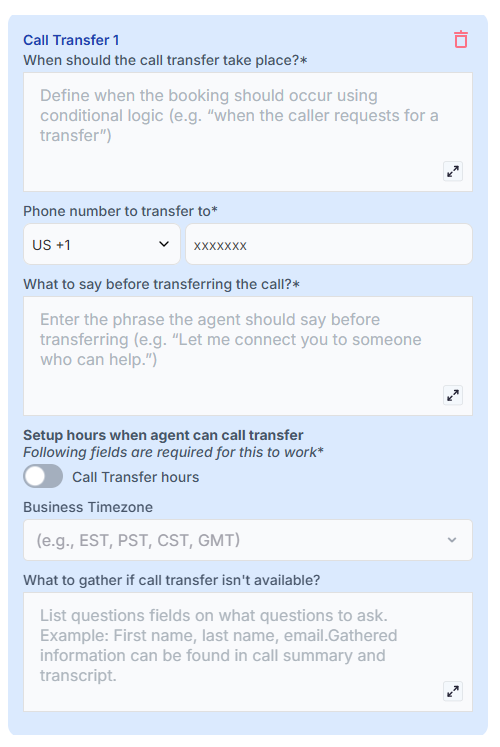
- You can configure business/availability hours to prevent disruptive off-hour transfers (for example, to avoid calls going through late at night).
Outside configured hours, the Concierge will offer alternatives such as taking a message or sending an email.
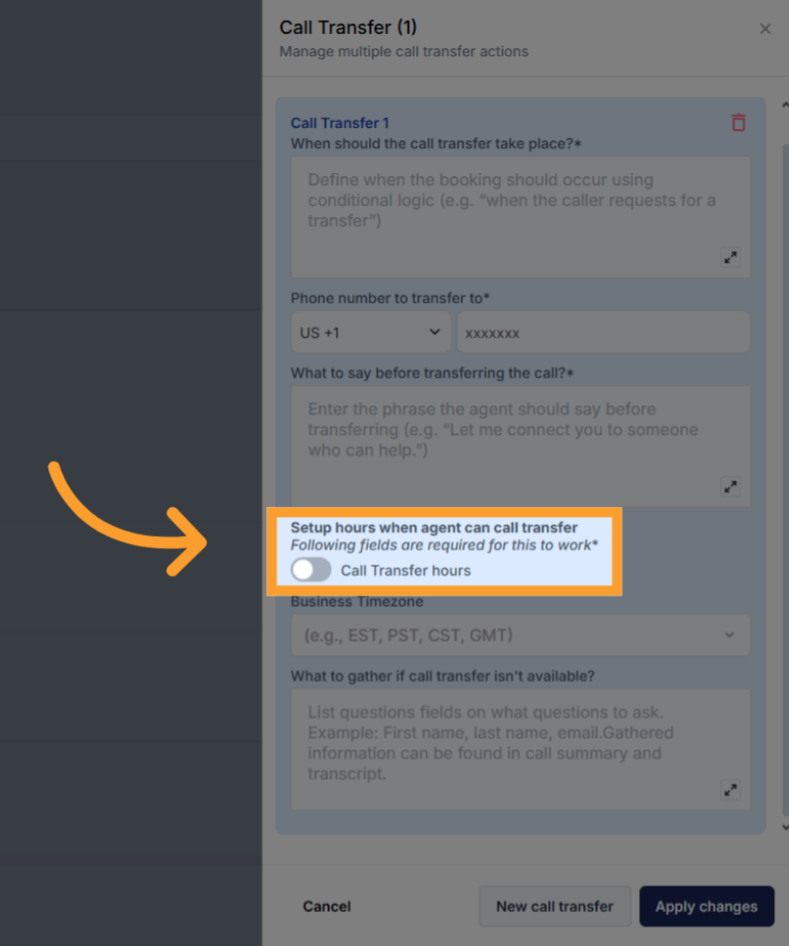
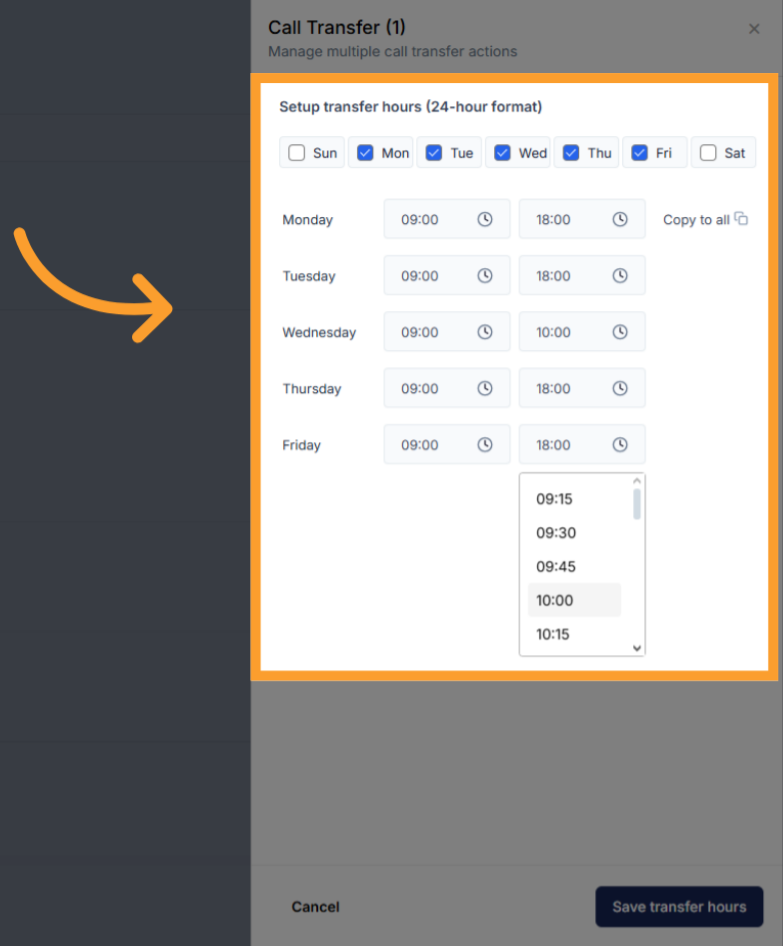
- Select the days of the week and customize the hours for each day.
After setting one day, you can use Copy All to apply the same schedule across all days if desired.
- Transfers only work in phone-based agents.
Notify The Rep
- Enter up to 10 email addresses to receive notifications.
- Each email includes:
- Guest details
- Call summary and transcript
- Call sentiment
- Recording link (unless the call was transferred)
- These are internal notifications only, meant for hosts, property managers, or support teams.
.png?fit=max&auto=format&n=d9INt8_clMeLOZYl&q=85&s=6680c602305ea07d657b708a30d0ea96)
FAQs & Troubleshooting
General Questions
Can I use the Concierge role without Hostaway?
Can I use the Concierge role without Hostaway?
Yes. You can configure the Concierge manually without Hostaway integration, but you must be on the STR plan.
Can I create multiple Concierge agents?
Can I create multiple Concierge agents?
Yes. Each Concierge can represent a unique property and phone number once connected to Hostaway or manually created.
Configuration
Do I need to manually update property information?
Do I need to manually update property information?
We automatically sync property data when connected via Hostaway. You can also manually add or update property information for properties not connected to Hostaway.
Can I customize the Concierge’s tone or style?
Can I customize the Concierge’s tone or style?
Yes. You can adjust voice tone, responsiveness, and greeting text under Voice Settings and Agent Settings.
Usage and Results
What kinds of calls is the Concierge best for?
What kinds of calls is the Concierge best for?
It’s ideal for answering guest inquiries, confirming bookings, and relaying information during active stays.
Where can I view call logs or transcripts?
Where can I view call logs or transcripts?
All Concierge activity appears in the Call History and Agent Logs within thinkrr.
For additional questions or guidance, try using our Virtual Support Agent! Available 24/7 to help resolve most issues quickly at thinkrr.ai/support. If you still need assistance, visit our support site at help.thinkrr.ai or submit a Ticket or contact our team directly at hello@thinkrr.ai.